
The QuickBooks Online integration sends approved timesheet hours, overtime and approved paid leave from TimeLeaf to QuickBooks as time activities. It works for QuickBooks companies in any country.
What you need
- The Professional plan or above.
- A TimeLeaf admin account.
- A QuickBooks Online login that can authorize apps for the company (a QuickBooks admin).
- Your employees set up as employees in QuickBooks, ideally with the same email addresses as in TimeLeaf.
Set it up
Connect QuickBooks
Go to Integrations › Connected Apps and scroll to Payroll. On the QuickBooks card, click Connect QuickBooks →.
Authorize TimeLeaf in QuickBooks
Sign in to Intuit, choose your company and approve the access. TimeLeaf asks for QuickBooks accounting access (com.intuit.quickbooks.accounting), which covers time activities, employees, customers and invoices.
Check the connection
You come back to Connected Apps with "QuickBooks connected successfully." The card shows Connected and your company name.
Match employees
Open Mapping & employee matching and click Auto-match by email, then match anyone still Not matched by hand (see Employee matching).
Sync your first period
On the QuickBooks card, pick the From and To dates and click Sync period. TimeLeaf shows how many entries synced and failed.
TimeLeaf keeps the connection alive by refreshing it in the background, even if you don't sync for a while.
Disconnect
Click Disconnect on the QuickBooks card. TimeLeaf revokes its access in QuickBooks and forgets the connection. Time activities already synced stay in QuickBooks; nothing is deleted in either system.
Setting up the mapping
After connecting, open Mapping & employee matching on the QuickBooks card (Integrations › Connected Apps). Click Save settings after choosing.
- Invoice item — the QuickBooks product/service TimeLeaf uses for pushed client invoice lines (only needed with the invoicing add-on). TimeLeaf lists the active items from your company; pick one.
Employee matching
Hours are posted to the QuickBooks employee each TimeLeaf person is matched to.
- Click Auto-match by email. TimeLeaf compares each person's email with the email on your QuickBooks employee records and links a pair only when exactly one person and exactly one QuickBooks employee carry that address.
- Everyone left shows as Not matched. Pick their QuickBooks employee from the list and click Save (the button counts your changes, for example Save 2 changes). A QuickBooks employee can be matched to only one person; to move one, unlink the first person.
- Unmatched people are skipped during sync and named in the result — their hours are never guessed onto someone else.
Companies that already typed a QuickBooks ID into the Employee ID profile field keep working: that value is used for anyone without a match, unless it collides with another person's match or ID, in which case both are skipped until you resolve it.
How timesheets sync
An admin pushes one period at a time: on the QuickBooks card, pick the From and To dates and click Sync period. It never runs on its own when a timesheet is approved. For each employee with approved data in the period, TimeLeaf creates TimeActivity entries in QuickBooks:
Regular hours
Each approved work day creates one TimeActivity with the date, hours, and employee reference.
Overtime
When an employee's daily or weekly hours exceed the threshold defined in your overtime policy, TimeLeaf splits that day into two TimeActivity entries:
- Regular entry — hours up to the threshold, using the original work description.
- Overtime entry — the excess hours, using the same description prefixed with
[Overtime].
QuickBooks' TimeActivity object has no native overtime field, so this prefix is the signal your payroll team uses to apply the correct rate.
Approved leave (PTO and time off)
Approved paid leave is synced as its own TimeActivity entry, separate from worked hours. The entry description is formatted as PTO - {policy name} (for example, PTO - Standard Vacation or PTO - Sick Leave). Only paid leave is synced — unpaid leave never creates an entry.
Example: week with overtime and leave
The screenshot below shows how a week with one PTO day and an overtime day appears in QuickBooks after sync. Emily Platt had approved Standard Vacation on Tuesday and worked 10 hours on Friday (2 hours over the daily threshold):
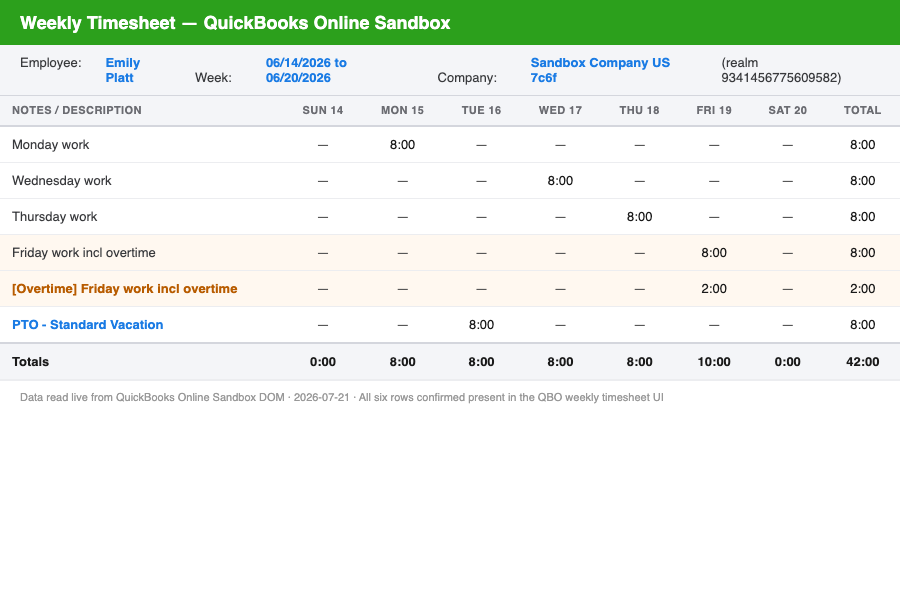
Illustrative reconstruction of live sandbox data — the entry labels and hours shown are real values read from a live QuickBooks session, re-rendered here rather than captured as a pixel screenshot.
Six separate TimeActivity entries are created — one per day per activity — with the overtime and PTO entries correctly broken out.
Supported data fields
| TimeLeaf field | QuickBooks TimeActivity field | Notes |
|---|---|---|
| Employee | EmployeeRef | Mapped via Employee matching |
| Date | TxnDate | |
| Regular hours | Hours, Minutes | |
| Overtime hours | Hours, Minutes | Separate TimeActivity entry, description prefixed with [Overtime] |
| Approved leave | Hours, Minutes | Separate TimeActivity entry, description set to PTO - {policy name} |
| Timesheet notes | Description |
Troubleshooting
The card says "Reconnect required". QuickBooks no longer accepts TimeLeaf's connection, for example because it was revoked in QuickBooks or not used for a long time. Syncing has stopped. Click Reconnect QuickBooks → on the card and approve it again; nothing else changes. A sync attempted meanwhile says "QuickBooks needs to be reconnected".
"Connection failed: access was not granted." You (or QuickBooks) cancelled the approval. Click Connect QuickBooks → and approve it.
"Connection failed: the provider did not accept the authorization." or "Connection failed: something went wrong." Try connecting again. If it keeps failing, contact TimeLeaf support and quote the Intuit ref shown in the message, if there is one.
"QuickBooks connection is not available on this TimeLeaf environment yet." Connecting QuickBooks isn't set up for your workspace. Contact TimeLeaf support.
The sync result lists failures. Each failed entry is reported on its own; everything else still syncs. The usual cause is a person who isn't matched to a QuickBooks employee (see Employee matching). Unmatched people are named in the result and their hours are never put on someone else.
The QuickBooks options say to upgrade. QuickBooks sync is on the Professional plan and above.