
A leave policy is the set of rules behind one kind of leave: how much people earn, how they can book it, whether it needs approval, and what happens to unused days. This page explains every setting and how to create, assign and switch policies.
What a policy is
Each policy covers exactly one leave type: Vacation, Sick Leave, Personal Days, Parental Leave, Bereavement or Other. You can have several policies of the same type, for example one vacation policy for your office staff and another for a crew in a different country. An employee can only book leave on a policy they are assigned to.
Policies live under Time off › Policies, on the Time-Off Policies tab. The number of policies you can create depends on your plan: up to 5 on Starter, up to 10 on Professional, and unlimited on Business and Enterprise.
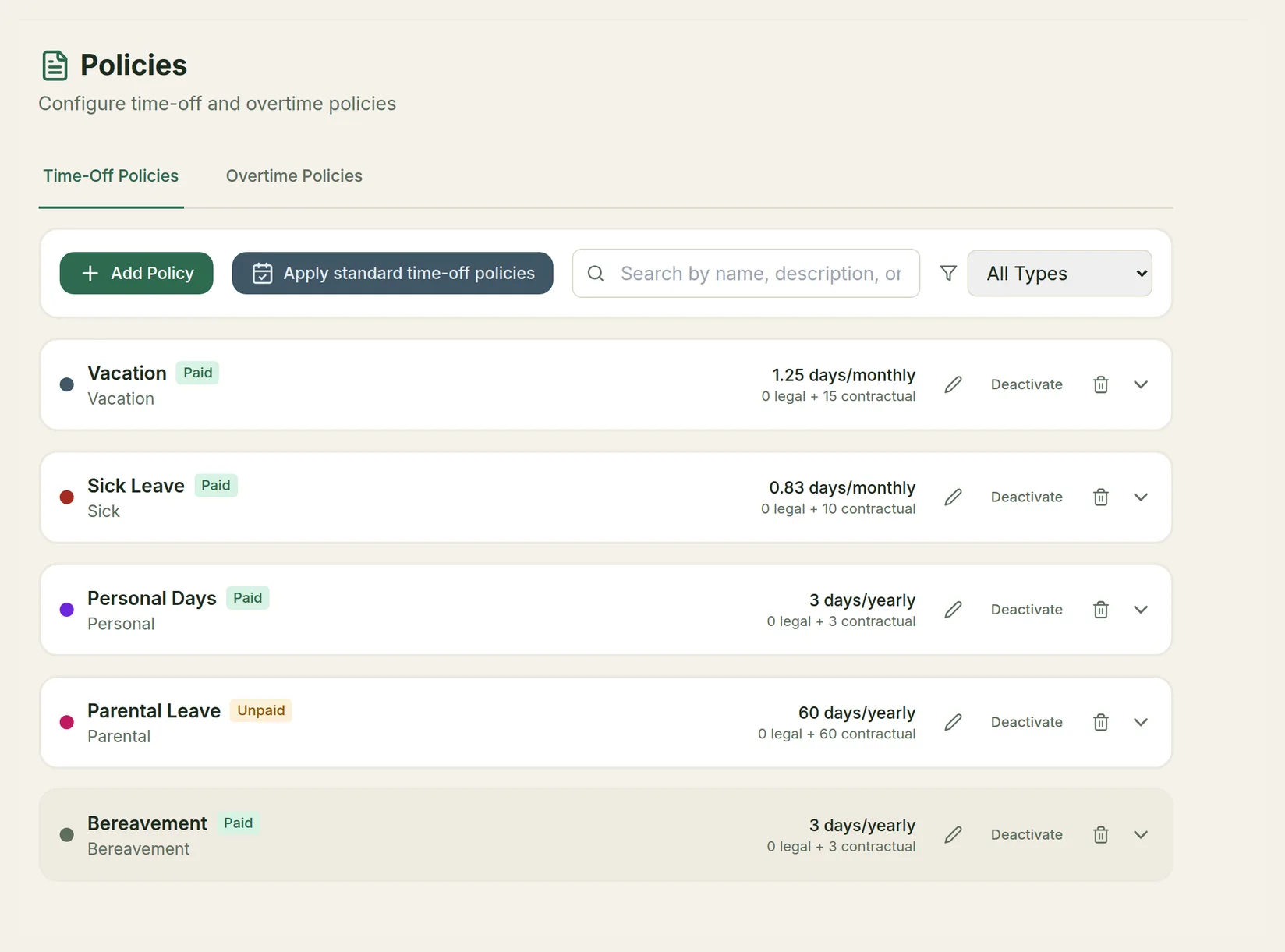
Click a policy to expand it and see its accrual method, entitlement, carryover limit, minimum notice and whether it needs approval. Each row also has:
- Edit (pencil icon) to change the policy.
- Deactivate to stop new requests on it while keeping everything already booked. Reactivate brings it back.
- Delete (bin icon) to remove it.
Start from the standard policies
The quickest start is a ready-made set for your country. TimeLeaf uses the jurisdiction on Settings › Company to pick it.
Open the standard set
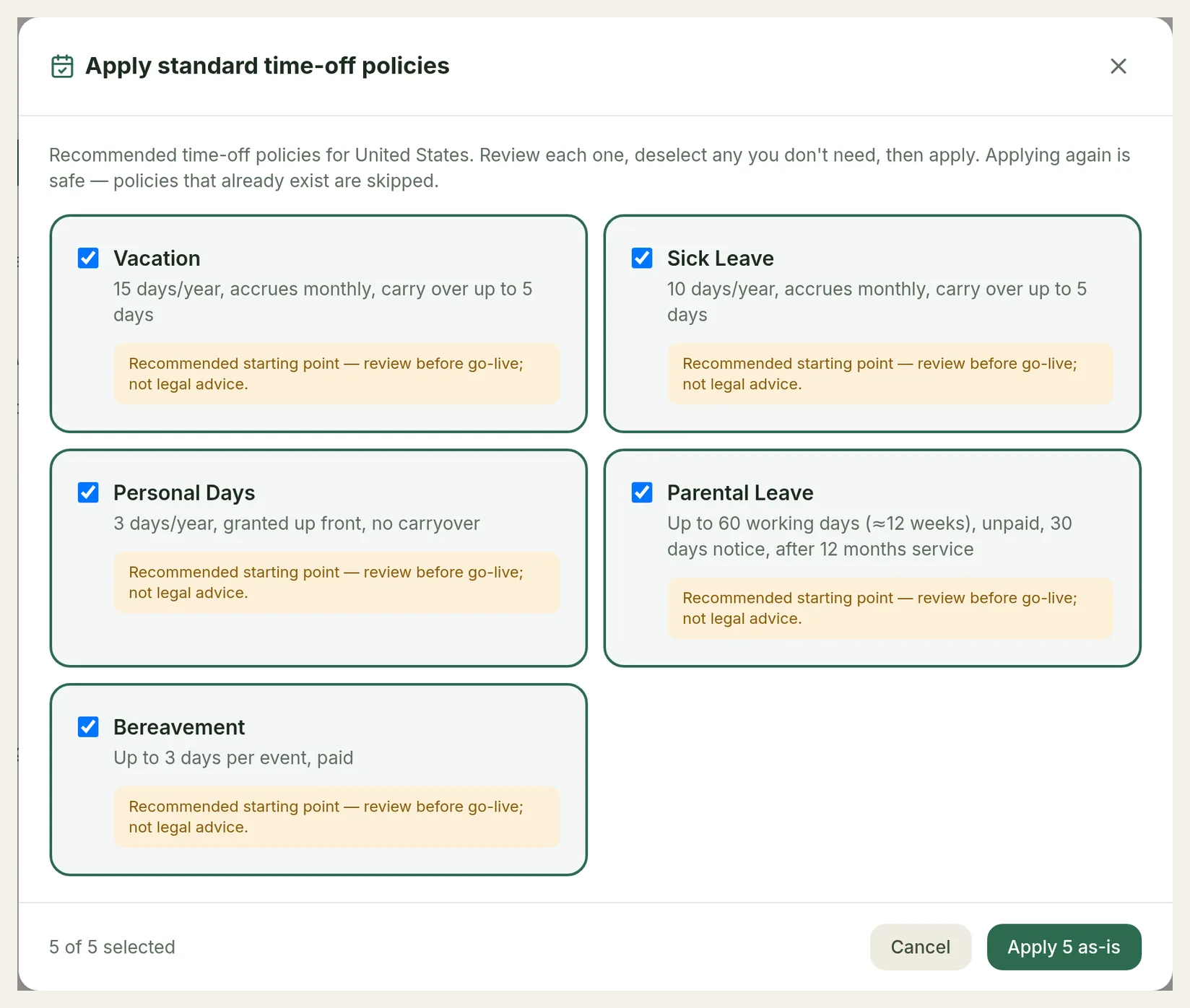
Go to Time off › Policies and click Apply standard time-off policies.
Pick the ones you want
Every recommended policy is selected. Read each card and untick any you don't need. The cards are a starting point, so review the figures before you go live.
Apply them
Click Apply … as-is. TimeLeaf tells you how many were created. Applying again is safe: a policy whose name already exists is skipped. You can edit any of them afterwards.
Create a policy
Open the form
Go to Time off › Policies and click Add Policy.
Name it and pick the leave type
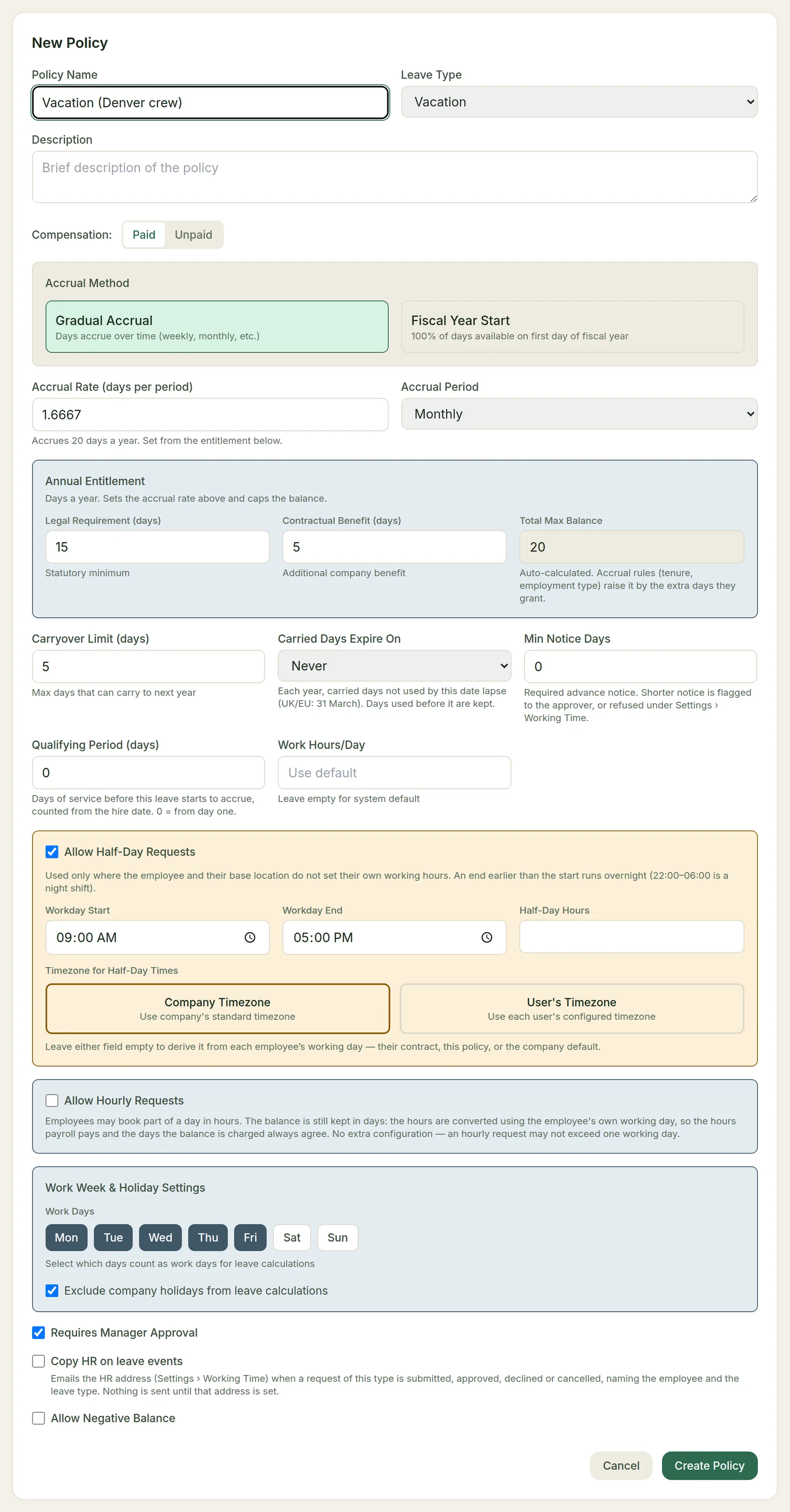
Enter a Policy Name (for example "Vacation (Denver crew)"), choose the Leave Type, add an optional Description, and set Compensation to Paid or Unpaid.
Choose how leave is earned
Pick the Accrual Method and fill in the Annual Entitlement. See Accrual and entitlement below.
Set the booking rules
Set carryover, minimum notice, qualifying period, half days, hourly requests and work days. Each is explained below.
Set approval and balance rules
Choose whether the leave needs approval, whether HR is copied, and whether the balance may go negative. Then click Create Policy.
Assign it
A new policy applies to nobody until you assign it. See Assigning policies below.
Policy settings
Accrual and entitlement
| Setting | What it does |
|---|---|
| Accrual Method | Gradual Accrual: days build up over the year. Fiscal Year Start: the whole entitlement is available on the first day of the leave year. The leave year is your company's fiscal year, set on Settings › Company. |
| Accrual Rate (days per period) and Accrual Period | Gradual accrual only. The period is Weekly, Bi-weekly, Monthly or Quarterly. The rate is filled in from the entitlement (20 days a year, monthly, is 1.6667 a month), and the form always shows how many days a year the rate adds up to. If you set a rate that differs from the entitlement on purpose, it is kept when you edit other fields. |
| Legal Requirement (days) | The statutory minimum your employees are entitled to. Half days are allowed (for example 22.5). |
| Contractual Benefit (days) | Extra days your company gives on top of the legal minimum. |
| Total Max Balance | Calculated for you: legal plus contractual days. With gradual accrual it also caps the balance. Accrual rules that grant extra days raise it by those days. |
With gradual accrual, each period is credited when it ends. On a 20-day monthly policy, an employee earns about 1.67 days at the end of each complete month, so someone who joins mid-month gets their first credit at the end of the following month. In a new starter's first leave year, the part-period left between their last whole period and the end of the leave year is credited pro rata on the last day of the year.
If you want people to have their full allowance from the first day of the leave year, choose Fiscal Year Start instead of gradual accrual.
Carryover
| Setting | What it does |
|---|---|
| Carryover Limit (days) | The most unused days that move into next year. Anything above it is lost at year end. |
| Carried Days Expire On | A month and day (for example 31 March, common in the UK and EU). Carried days not used by that date lapse each year. Days used before it are kept. Never means carried days don't expire. |
Employees see how many carried days are still at risk on their dashboard. To email them a monthly reminder about leave that is about to expire, turn on Remind Employees About Expiring Leave under Settings › Working Time.
Booking rules
| Setting | What it does |
|---|---|
| Min Notice Days | How many days ahead people must book. Shorter notice is flagged to the approver, or refused, depending on Short-Notice Leave under Settings › Working Time. Sick leave never needs notice. |
| Qualifying Period (days) | Days of service before this leave starts to accrue, counted from the employee's hire date. 0 means from day one. Someone who is already past it when the policy is assigned accrues from the assignment date. |
| Work Hours/Day | The length of a working day for this policy, used to turn hours into days. Leave it empty to use Default Work Hours/Day from Settings › Working Time. |
Half days
Tick Allow Half-Day Requests to let employees book the morning or afternoon of a day. When it is unticked, the Half-day request option does not appear for this policy and a half-day booking is refused. Half days that are already booked stay as they are and can still be edited.
To split a day into halves, TimeLeaf needs that person's working hours. It uses the first of these that is set:
- The employee's own Workday starts and Workday ends (in their employee record).
- Their base location's workday hours (Settings › Locations).
- This policy's Workday Start and Workday End.
- The company's Workday Starts and Workday Ends under Settings › Working Time (09:00–17:00 if left blank).
An end earlier than the start is read as an overnight day, so 22:00–06:00 works for a night crew.
Timezone for Half-Day Times decides which clock the policy's and the company's hours are read on: Company Timezone or User's Timezone. A location's hours are always read on that location's own time zone. Half-Day Hours is optional; leave it empty to work it out from each employee's working day.
Hourly requests
Tick Allow Hourly Requests to let employees book part of a day in hours, for example a two-hour appointment. The balance is still kept in days: the hours are converted using the employee's own working day, so payroll and the balance always agree. An hourly request can't be longer than one working day.
Work days and holidays
| Setting | What it does |
|---|---|
| Work Days | Which days of the week count as working days for this leave. A booking only charges the days it covers that are working days. If an employee has their own work pattern (Edit Employee › Work pattern), it replaces these days for the dates it covers. |
| Exclude company holidays from leave calculations | Public holidays that apply to the employee are not charged. Holidays are managed under Time off › Holidays and apply by country or location, not per policy. See Team Calendar. |
When you change a policy's work days or holiday setting, or add, edit or remove a holiday, TimeLeaf re-counts the pending and approved bookings it affects and records each change in the audit log. A change that would leave a half-day or hourly booking on a day the employee no longer works is refused until that booking is moved or cancelled.
Approval and notifications
| Setting | What it does |
|---|---|
| Requires Manager Approval | On (standard): requests go to an approver. Off: requests are approved the moment they are submitted. Balance and booking checks still apply. See Approval Workflows. |
| Copy HR on leave events | Emails the address in HR Email for Leave Copies (Settings › Working Time) when a request of this type is submitted, approved, declined or cancelled, including leave recorded on an employee's behalf. The email names the employee and the leave type, so use a mailbox that only people entitled to see that read. Nothing is sent until the address is set. |
Negative balance
Tick Allow Negative Balance to let a booking take the balance below zero. The balance then shows the real negative figure everywhere. Without it, a request that the employee's projected balance can't cover is refused.
When it is on, more choices appear:
- A negative balance at the end of the leave year: Is forgiven (next year starts from zero; the default) or Carries into next year (deducted from next year's balance). A carried debt is not capped by the carryover limit and does not expire.
- When a company closure is more than an hourly employee's balance: Their balance goes negative (the default) or The extra days are unpaid time off. Hourly means the pay type on the employee's current contract. You can't choose unpaid days while a negative balance carries into next year. See Company closures.
- When a request would go below zero (shown only when Requires Manager Approval is off): Send to the manager (the default) or Approve automatically.
Accrual rules
On the Business plan and above, a policy can give some employees more or less than its standard accrual. Expand the policy in the list and click Configure Accrual Rules, then Add Rule.
Each rule has:
- A Condition Type: Tenure-Based (minimum and maximum tenure in months), Employment Type, Contract Type, or Combined Conditions.
- An Accrual Modification: Add days to the base accrual, Multiply it (for example 0.5 for half), or Replace it. You can set a Max Modifier (cap), and for tenure rules a Progressive tenure bonus that adds days per year or month of service.
- A Priority (higher rules are evaluated first) and an Active switch.
A rule's extra days are added to the policy's maximum balance and entitlement, so the policy's own cap never cancels a rule out.
Part-time employees
Balances are kept in days, and a booking charges one day for each of the employee's own working days it covers. The FTE on the employee's contract then scales how much they accrue: FTE 0.6 accrues 60% of the entitlement.
That works for someone who works fewer days a week: a three-day-a-week employee on FTE 0.6 accrues 12 of 20 days, and a week off costs them 3 days, so they get the same four weeks off as a full-timer.
It does not work for someone who works every day, but shorter days. Their week off still costs 5 days, so scaling their accrual by an hours-based FTE takes the part-time share off twice. For these employees, either record the contract's FTE as the share of days they work (5 of 5 days is 1.0), or give them their own policy whose entitlement is the full-time figure divided by their FTE. To let them book part of a day in hours, turn on Allow Hourly Requests.
Assigning policies
A policy applies only to the employees it is assigned to.
One employee: go to People › Employees & Teams, open the employee's Actions menu and choose Policies. Under Add Policy, click Assign next to the policy. Under Assigned Policies, Remove takes one away.
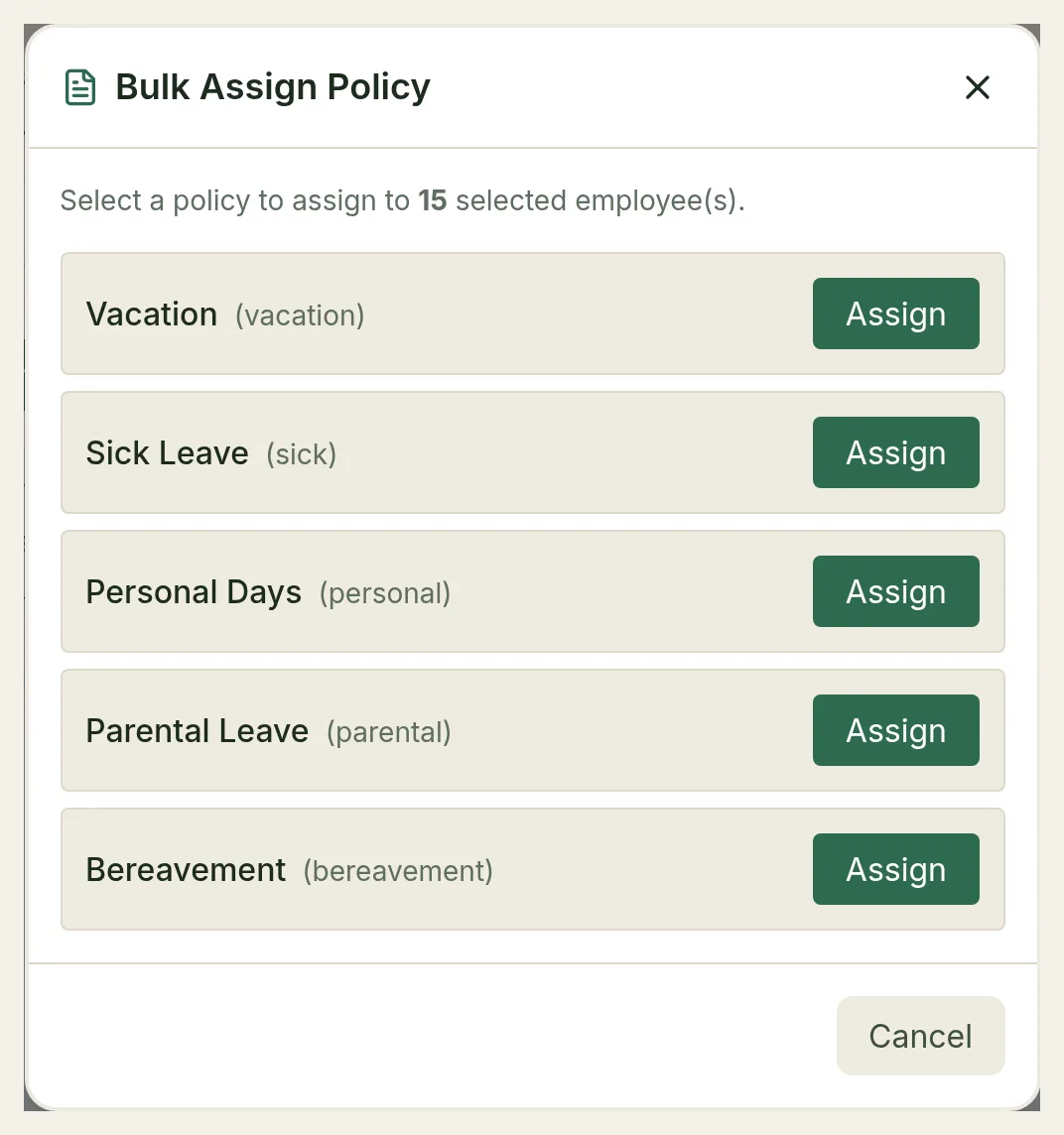
Many employees: select them in the list, click Assign Policy, and click Assign next to the policy in the Bulk Assign Policy dialog.
A policy assigned mid-year accrues from the day it is assigned, or from the end of its qualifying period if that is later.
Switching an employee to another policy
To move someone from one policy to another of the same leave type mid-year (for example from a full-time to a part-time vacation policy), don't remove the old one and assign the new one: that loses their balance. Switch instead:
- For one employee: in their Policies dialog, click Switch from … next to the new policy.
- For several: in Bulk Assign Policy, use the Switch from… menu next to the new policy and pick the old one.
The switch happens today. The old policy ends yesterday and stays in the employee's history; the new one applies from today. Before anything changes, TimeLeaf shows each employee's available balance on the old policy and what the new one will read, and asks what to do with the rest of the old balance:
- Carry it across (recommended): the old balance becomes the new balance, day for day (hour for hour when both policies count hours), like an imported starting balance. It is not worked out pro rata. A debt carries across as a debt. Carried-over days keep their expiry date. It is recorded as one balance adjustment per employee in the audit log.
- Let it lapse: the new policy starts from its own figure and the old balance is lost.
From the switch day, the new policy's rules apply:
- It accrues for its own periods after the switch. The part of an old accrual period that had already passed is credited by neither policy.
- Switching from a policy that grants the year up front to one that accrues gradually keeps the whole-year grant, and the new policy accrues on top from the switch.
- Switching to a policy that grants the year up front gives nothing more this leave year; its first grant comes next leave year.
- Bookings that haven't started yet, and requests still undecided, move to the new policy and are re-counted on its work days, so cancelling one later gives the days back on the new policy. Leave already under way stays on the old policy.
Nobody inside the new policy's qualifying period is switched; the preview names them. If an employee's balance changes while you look at the preview, they are left unswitched so you can check the new figure and try again.
Balance adjustments
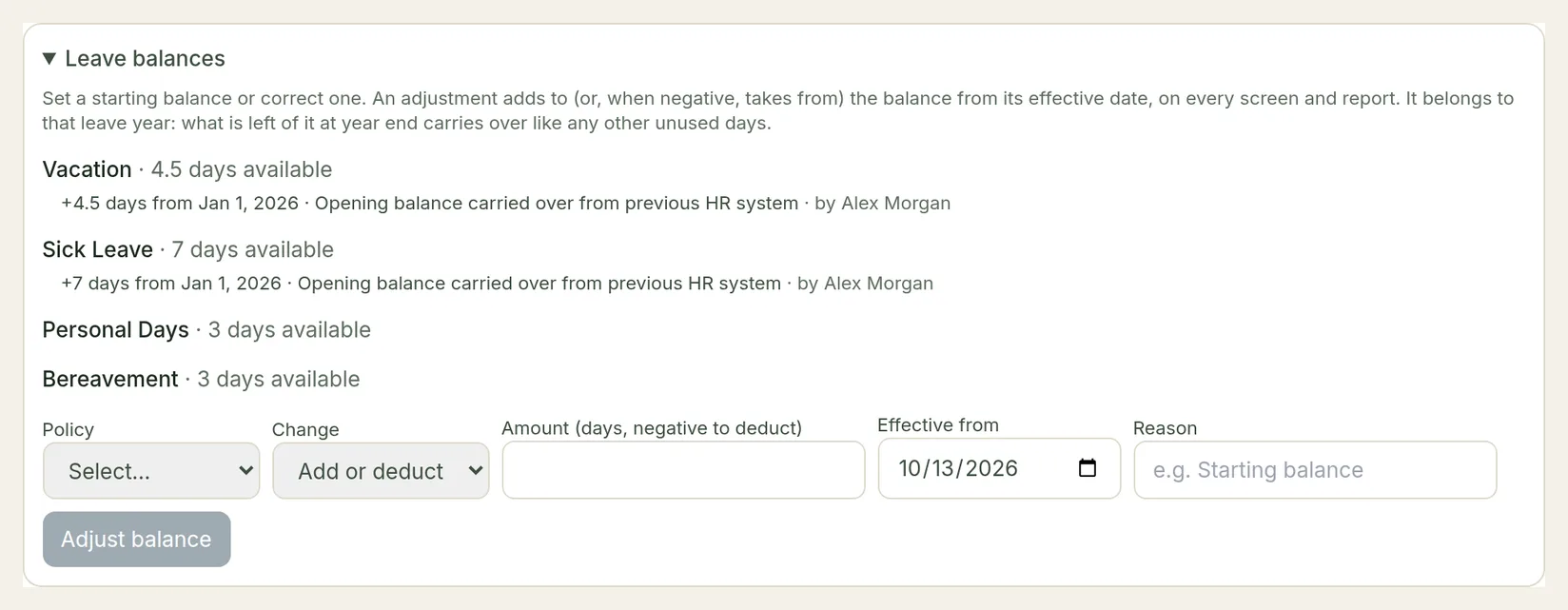
To set a starting balance or correct one, open the employee (Actions › Edit) and expand Leave balances. Choose the Policy, choose Add or deduct or Set balance to, enter the amount and a Reason, and click Adjust balance (or Set balance). Every adjustment is listed with who made it and recorded in the audit log.
To let managers do the same for their direct reports, turn on Managers Can Adjust Their Reports' Balances under Settings › Working Time. It is off by default. Managers can't adjust their own balance, and a reason is always required.
Blackout periods and closures
Two other rules affect booking on top of a policy:
- Blackout periods stop people booking leave on dates you choose, for all policies or only some.
- Company closures deduct days from everyone's vacation balance when the business shuts.
Both are covered in Blackout Periods & Company Closures.