
TimeLeaf can act as an MCP (Model Context Protocol) server, so an AI assistant such as Claude can answer questions about your schedule, coverage and leave, and propose shift and leave actions for a person to approve. It is included on the Business and Enterprise plans and is off until an admin switches it on.
Switch it on
Open Connected Apps
As an admin, go to Integrations › Connected Apps and scroll to the AI copilot card.
Let assistants connect
Tick Let AI assistants connect to TimeLeaf. It saves as soon as you tick it. Assistants can now read data, with the access of the person who approves each connection.
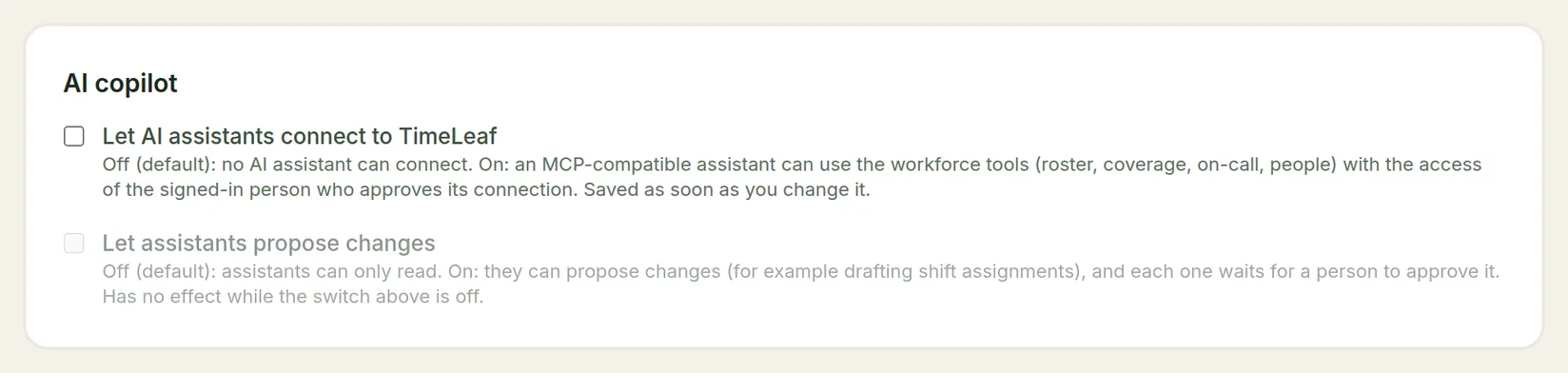
Allow proposed changes (optional)
Tick Let assistants propose changes if you want assistants to be able to draft shift assignments, approve leave and similar actions. Each one still waits for a person to approve it. This box has no effect while the first one is off.
On a plan below Business, the card says the AI copilot is included on the Business plan and above.
Connect an assistant
Each person connects their own assistant.
- In your MCP-compatible assistant, add a server with the address
https://<your-workspace>.timeleaf.io/api/mcp. The assistant registers itself; you don't create an app first. - Sign in to TimeLeaf when asked.
- On the consent screen, tick what the assistant may do. Nothing is granted beyond what you tick.
| Permission | What the assistant can do |
|---|---|
| See who is scheduled, on call, or checked in | Read the roster, coverage and on-call data. |
| See a person's contract details, hours, leave, and time-bank balance | Read details about people. |
| Assign shifts and offer them for takeover, and open overtime opportunities | Propose shift and overtime actions. Only offered when Let assistants propose changes is on. |
| Approve or deny leave requests, and send messages to your team | Propose leave decisions and messages. Only offered when Let assistants propose changes is on. |
| See your clients, price list, quotes and invoices, and a quote's job profit | Read billing data. Needs the Client Invoicing add-on, and only for an admin, an owner or a Billing user. |
| Draft quotes and invoices for you to review and send yourself | Prepare drafts. Only offered when Let assistants propose changes is on, and with the same add-on and role. |
The assistant only ever sees what the person who connected it could see in TimeLeaf. A manager's assistant sees that manager's team, not the whole company.
What an assistant can read
- Who is scheduled between two dates, and which shift roles are short.
- Coverage gaps: shifts with fewer people than they need.
- Who is on call now, and the next handoff.
- Where your direct reports are checked in on a given day (job-site check-ins).
- Your direct reports' approved leave and any blackouts in a date range.
- A snapshot of one person: contract details, roles, hours this period and time bank balance.
- Your clients, your price list, your quotes (with their lines, payments and status) and invoices, a client's balance, and a quote's job profit. This needs the Client Invoicing add-on, and the person must be an admin, an owner or a Billing user. It never includes your costs per line, the cost-per-hour settings, anyone's pay, or a client's link.
- A suggested roster for one week that fills your gaps, without saving anything.
- What happens if someone doesn't turn up on a given day: the effect on coverage and who could replace them, without saving anything.
What an assistant can propose
With Let assistants propose changes on, an assistant can propose to:
- Assign shifts (for example, some or all of a suggested roster).
- Offer an assigned shift for takeover. This also needs Shift Automation switched on.
- Create and publish an overtime opportunity.
- Approve or deny a leave request.
- Send a plain-text message to specific people.
- Draft a quote, change a draft quote, or prepare a draft payment or final invoice for a quote. The result is always a draft. The assistant cannot send a quote, issue, send, void or mark an invoice paid, or withdraw, cancel or close a quote: a person does that in TimeLeaf, and the client accepts only through their own email code. See Quotes.
Approving a proposal
Nothing an assistant proposes happens straight away. Each proposal sends an approval card to the person who connected the assistant, as a direct message from the TimeLeaf bot in Slack, Microsoft Teams or Google Chat. Only when they approve it on the card is the shift assigned, the offer sent, the leave decided or the message sent.
- A proposal expires after 15 minutes. After that it is dropped, and the assistant has to propose it again.
- The approval cards need a messenger connected (see Slack, Microsoft 365 or Google Chat) and the approver linked to the TimeLeaf bot. Without one, proposals can't be approved.
- A proposed shift assignment is checked against the same rules as any other: leave, qualifications, rest, working-time limits and work restrictions. A proposal that breaks one is refused.
Admins and two-factor authentication
If Require two-factor authentication for admins, owners and Billing users is on (Settings › Security), an admin, owner or Billing user who has not set up an authenticator app acts through the assistant with ordinary employee access, not admin or Billing access. Set up the authenticator app under Settings › Profile › Security to use admin access through an assistant.