
These are two different tools. A blackout period stops people booking leave on dates when you need everyone at work. A company closure is the opposite: the business is shut, and the days come out of everyone's vacation balance. Both are available on every plan.
Blackout periods
A blackout period covers a date range, such as a year-end stock count or a product launch. While it is active, a leave request that touches any of its days is refused, unless you allow exceptions.
Create a blackout period
Open Blackout Periods
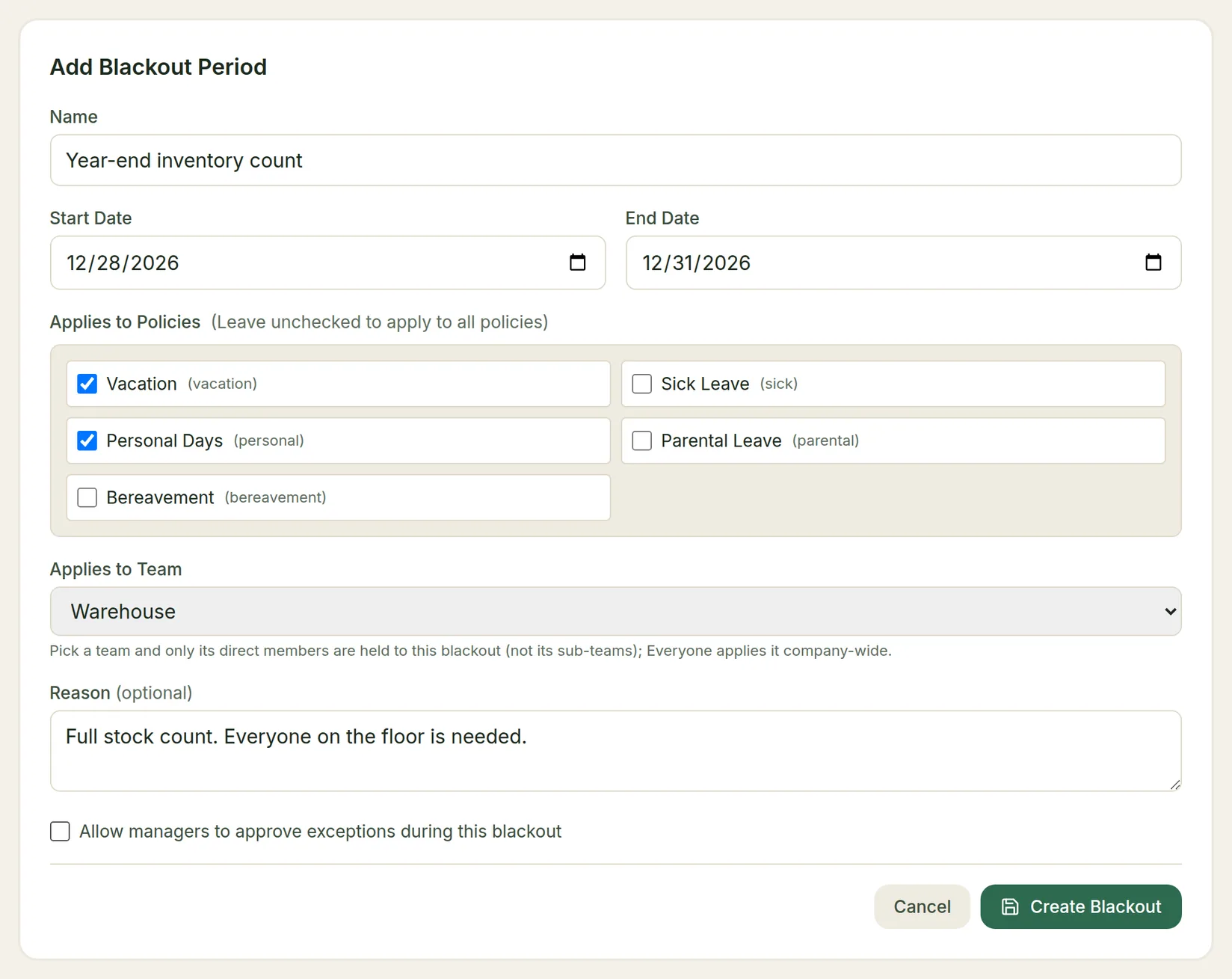
Go to Time off › Blackout Periods and click Add Blackout.
Name it and set the dates
Enter a Name (for example "Year-end inventory count"), a Start Date and an End Date.
Choose who it applies to
- Applies to Policies: tick the leave policies it restricts. Leave them all unticked to apply it to every policy, for example to allow sick leave but block vacation and personal days.
- Applies to Team: Everyone applies it company-wide. Pick one team to hold only that team's direct members to it (not people in other teams).
Decide about exceptions
Add an optional Reason, then decide whether to tick Allow managers to approve exceptions during this blackout:
- Off: a request touching the blackout is refused when the employee submits it, with a message naming the blackout.
- On: the employee can still submit it, and it goes to their approver as a normal request. There is no extra approval step; the approver decides whether to approve it.
Click Create Blackout.
Managing blackouts
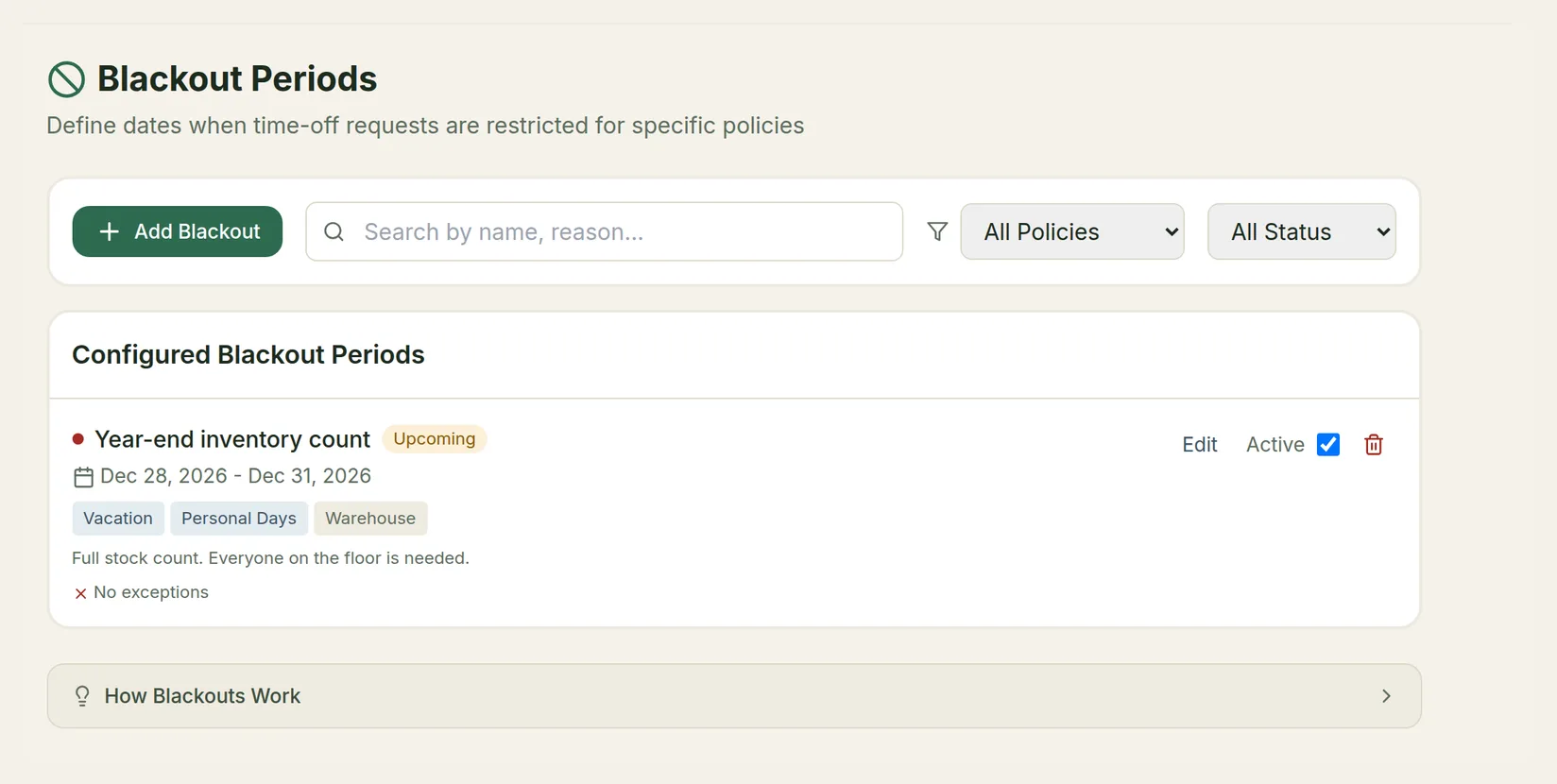
Your blackouts are listed under Configured Blackout Periods, with their dates, policies, team and whether exceptions are allowed. Each one has an Active switch, so you can turn one off without deleting it, plus edit and delete buttons. Filter the list by policy or by status (Active Now, Upcoming, Past), or search by name and reason.
Good to know
- A blackout applies to new requests and to moving an existing request onto blacked-out days. Leave already booked before you created the blackout is not cancelled.
- It also applies when a manager records leave on an employee's behalf. An admin recording or changing leave for someone can override a blackout for that one booking by ticking the box shown for it; the override is recorded in the audit log.
- The owner account your workspace was created with is not held to blackouts.
- Blackouts don't appear on the Who's off calendar.
Company closures
A company closure is a period when the business shuts, such as the week between Christmas and New Year. Each closed working day is deducted from the vacation balance of every employee on the policy you choose. Closures don't restrict booking: they take the days themselves.
Add a closure
Open Company Closures
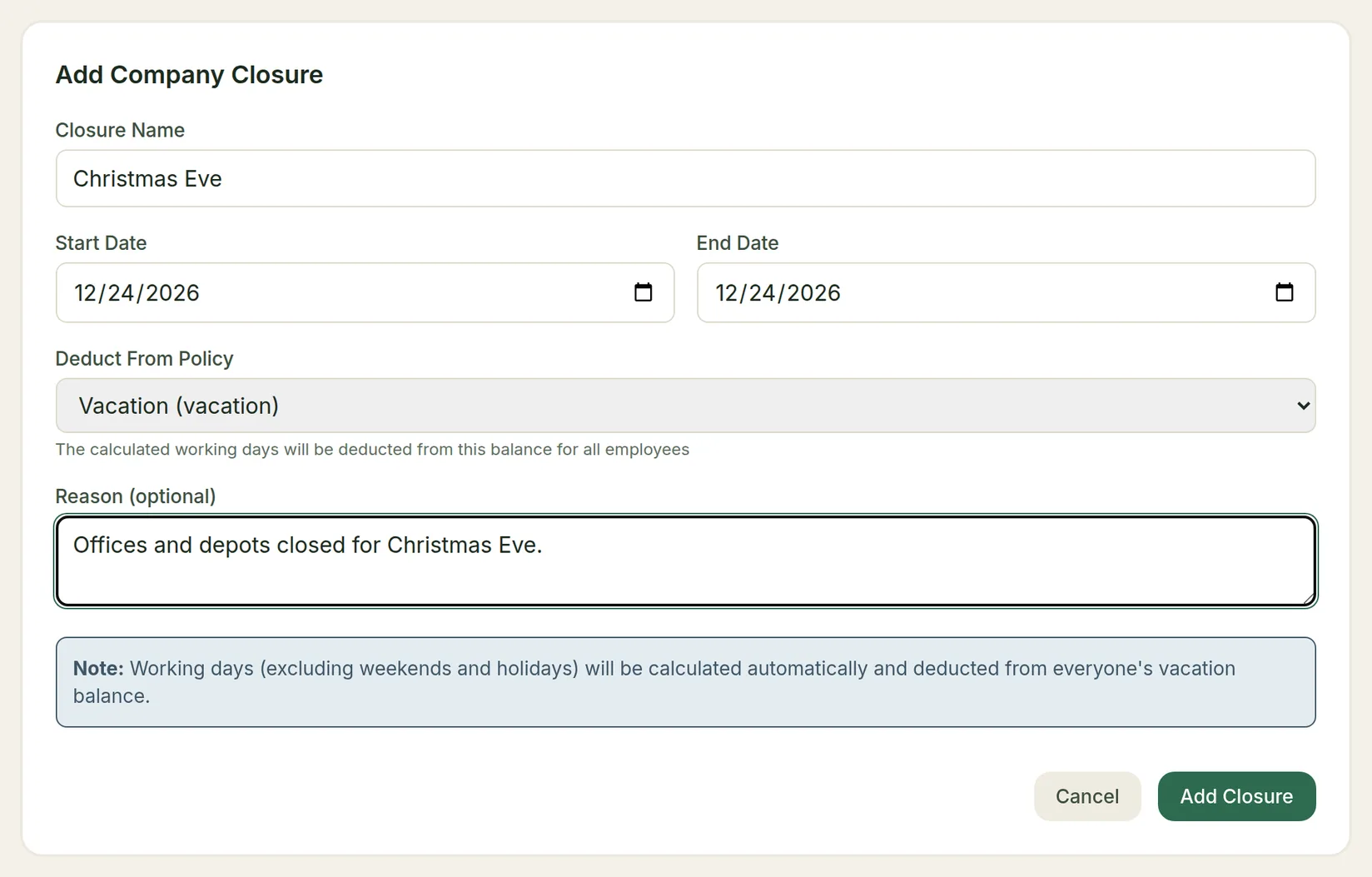
Go to Time off › Company Closures and click Add Closure. You need a vacation policy first.
Fill in the closure
Enter a Closure Name, the Start Date and End Date, and choose the vacation policy in Deduct From Policy. Add an optional Reason.
Save it
Click Add Closure. The closure appears in the list for its year with the number of working days it covers.
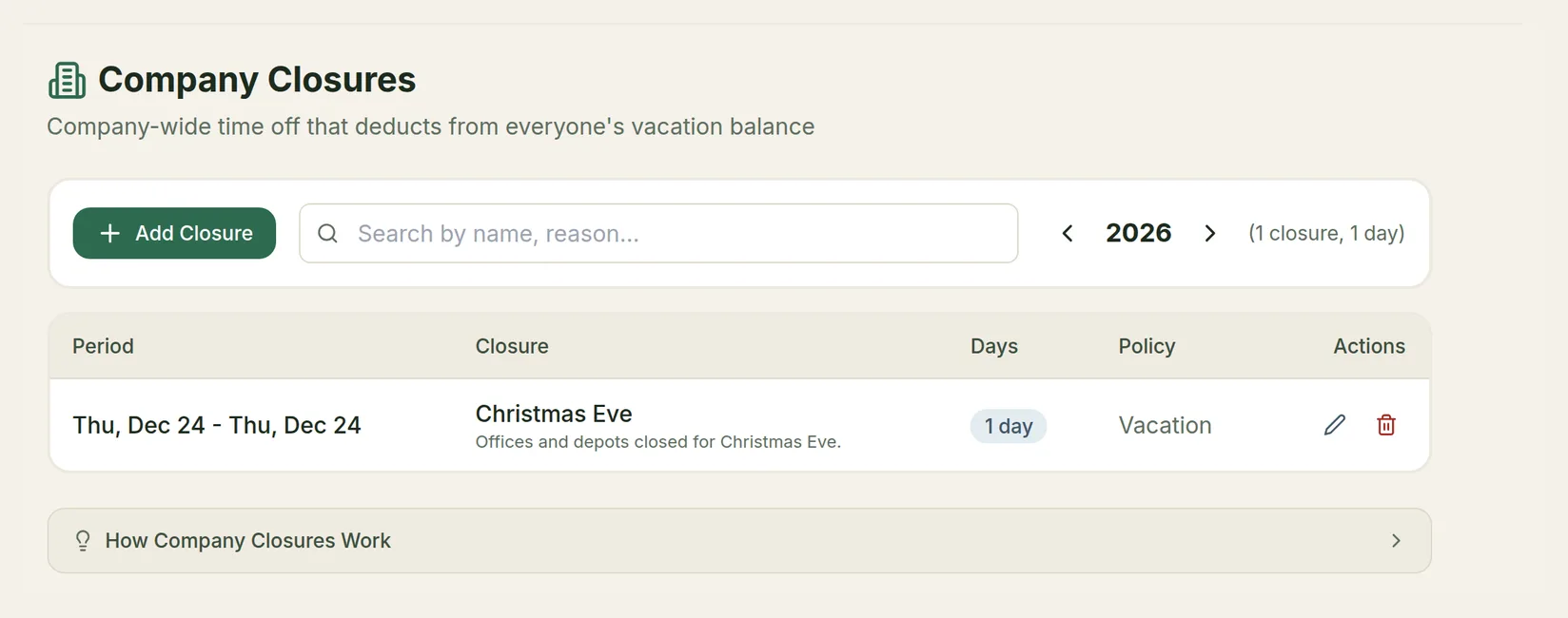
Use the arrows to move between years. Edit or delete a closure from the list; deleting it gives the days back.
How closure days are counted
- Each employee is charged only their own working days: if someone doesn't work Fridays, a closed Friday costs them nothing.
- Public holidays that apply to the employee aren't charged.
- A day is never charged twice. If an employee already booked vacation on that policy over the closure, the closure takes those days and the booking stops counting them. If the closure is removed, they go back to the booking.
- The days count in the employee's balance and in leave reports like any other leave. Closures don't appear on the Who's off calendar.
Closures and payroll
Every closure day the balance pays is exported to payroll as paid leave of that type, just like an approved request on that day.
For an hourly employee (the pay type on their current contract), a closure longer than their balance can't all be paid from the balance. The days the balance covers are paid, earliest first, and the rest are unpaid time off:
- The employee's balance card, and their manager's team view, show how many closure days are unpaid.
- The standard payroll CSV lists each unpaid day as a zero-hour row marked as an unpaid closure. The QuickBooks, Xero, Gusto and ADP exports include paid leave only.
- On a policy that allows a negative balance, you choose in the policy whether an hourly employee's balance goes negative (the default) or the extra days are unpaid. See Leave Policies.
- Deleting the closure gives the days back to the balance.
Salaried employees are not affected: their closure days are always charged in full.