
If your company schedules shifts in TimeLeaf (Professional plan and up), your manager builds the roster and you see your shifts on your dashboard. This guide covers what you see and what you can answer.
Your upcoming shifts
The Upcoming Shifts card on your dashboard lists your shifts from today through the next two weeks: the date, the hours and the shift's name (or Ad-hoc for a one-off shift). If there are more than five, the card shows how many more.
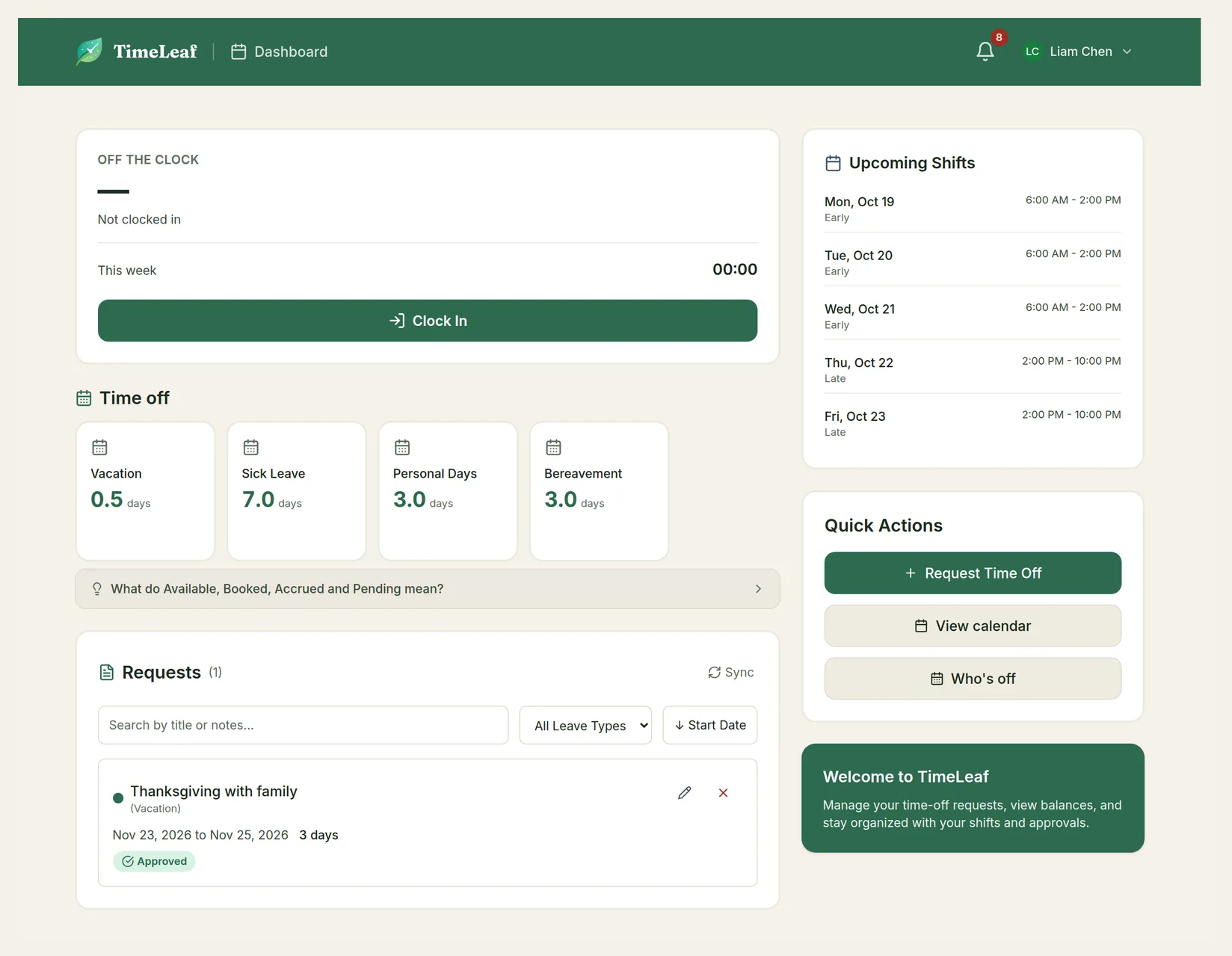
Hours are shown on your own clock. If a shift is at a site in another time zone, the card also shows the site's time, labelled with its zone.
If your shift has job-site stops, the card lists them with a Directions link that opens your phone's maps app. Your company may also show a Today's route card where you Check in and Check out at each stop. Your first check-in can start your paid day.
The card only appears when you have shifts coming up.
Jobs at customers' places
If your company sends people to customers' places, it has turned on job sites and you may see Schedule in the menu under your name (Professional plan and up). It shows your week day by day. By default you see the job days you work. If your admin has turned on Workers and jobs, you also see your team's job days.
Open a job day to see the customer, the address, Directions (when the site has a map pin or an address) and Who is going. On a day you work, you also get Call, the note for the crew and the job notes, and, around the day itself, Check in and Check out at the site, as on the route card described in Your upcoming shifts. A place nobody holds yet shows as Needs 1 more, without saying why. You can't fill it yourself.
- I can't make it asks for the whole day off, not just the hours of this job. Choose I'm sick or Something else; if your manager has to approve it, the screen says who is deciding. Once it is approved, your place is open for someone else.
- Swap the shift works as in Swap a shift.
Booking a job. Only when your admin has turned on Workers and jobs do you see Book a job on the Schedule. Pick the customer (search by name or address, or add a New customer; you find only customers on your own or your team's jobs, and ones you added), the day, the start time and how long, who is going, and tap Book job. You can book for yourself and for people on your team. Other people show only as Free or Busy. If a rule is in the way for you, it says This would break a scheduling rule for you, and you can't override it. If it is in the way for someone else, they just show as busy. TimeLeaf limits how many jobs you can book in a day.
On a job you booked, when everyone on it is in your reach, you can change a day's hours and use Cancel this day or Cancel job…. On a one-day job that hasn't started you can also Move to another day, and on a repeating job you can Edit all future days. A change that would take someone off a day or leave a place open can't be saved from here: ask a manager. If the job isn't yours, or someone on it is outside your team, the screen says Only a manager can change this job.
Shift notifications
TimeLeaf tells you in the app (the bell) and by email when:
- New shift: your manager assigns you a shift.
- Shift changed: your manager moves or retimes one of your shifts.
- Your schedule is ready: your manager publishes a roster with shifts for you.
- Route Changed: the stops on one of your shifts changed.
Emails come in your own language. You can turn emails off in Notification Settings (see Your First Sign-In).
Shift reminders
If your company has them on, TimeLeaf reminds you about your own shifts. Only you get these, never your manager.
- Your shift starts soon: about an hour before a shift you hold starts.
- Clock-in missed: about 15 minutes after a shift started, if you haven't clocked in. This one is sent only when your company uses clock-in, and not if you have already clocked in.
Reminders are part of shift scheduling, on the Professional plan and up.
You get each reminder in the app (the bell), as a push notification if you turned those on, and as a message in your chat app (Teams, Slack or Google Chat) if it's connected. There is no email. The time in the reminder is on the shift's own clock, with the zone named.
Reminders go out in batches about every 15 minutes, so one can arrive a little late: the "starts soon" reminder reaches you 45 to 60 minutes ahead. You get each reminder once. If your manager moves your shift to a new time, you get one for the new time. You aren't reminded about vacant shifts, cancelled shifts, shifts out to offer or roster drafts your manager hasn't published.
Shift offers
When a shift needs covering, your manager can offer it out (Business plan and up, when your company uses Shift Automation). If you're qualified and available, you get a Shift Available notification and an email.
Open the offer
Choose the notification or the link in the email. It takes you to Shifts offered to you on your dashboard.
Accept or decline
Each offer shows the date, the hours and Respond by with the deadline. Choose Accept or Decline.
- Shift accepted. It is now on your schedule. The shift is yours and appears under Upcoming Shifts.
- That offer is no longer available. Someone else took it, the deadline passed, or it no longer fits your schedule.
Shift preferences
Some companies ask you which shifts you'd like before they build the roster (Business plan and up). When your manager opens a preference period, you get a Preference Deadline Approaching notification and email about a day before the deadline, with a link to the form.
Open the preference period
Choose the link in the notification. Your Preferences lists the open periods and how much time is left. Choose a period.
Rank your shifts for each day
Pick a day of the week. Under Available Shifts, add up to three shifts in order of preference: your first choice has the highest priority. Use the handle beside a choice to move it up or down, or Remove it.
Save
Repeat for each day you want to work, then choose Save Preferences.
Your preferences are one input. Your manager also considers qualifications, leave and working-time rules, and reviews the roster before publishing it.
When you can't work
Tell your manager and the auto-schedule when you can't be rostered. Open the shift preferences page (the link in a preference notification, or /dashboard/shift-preferences) and find When I can't work.
Choose the type
Under Type, choose Every week for a weekday that repeats (then pick the Day), or On dates for a stretch of days (then set the First day and Last day).
Set the hours, if it's not the whole day
Fill in From and To to mark only part of the day. Leave both empty to mark the whole day. If To is earlier than From, the time runs past midnight.
Add it
Choose Add. It applies straight away. To take one away, choose the bin icon (Remove) beside it.
Each entry shows the clock its hours are on, set from your base location (or the company's time zone if you have none). Moving your base later doesn't change entries you already made.
What it does:
- Roster generation, shift offers and overtime offers skip you for those times.
- If a manager tries to assign you then, TimeLeaf warns them and they can still choose to go ahead. They see only that you marked the time as unavailable, never a reason. There is nowhere to write one.
- Shifts you already have stay until your manager changes them. On the roster they show Marked unavailable so the manager can see the clash.
This is not time off. It takes no leave balance and needs no approval. For a day off that you want approved, request time off. You can have up to 100 entries and can't add the same one twice. This is part of shift scheduling, on the Professional plan and up.
Swap a shift
You can swap one of your upcoming shifts for a colleague's. You each give one shift and take the other. The two shifts must be in the same role. Swaps are part of shift scheduling, on the Professional plan and up.
Choose Swap
On your dashboard, the Upcoming Shifts card lists your next two weeks of shifts. Choose Swap on the shift you want to give away. You can swap only the shifts shown there.
Pick a colleague's shift
Swap this shift lists colleagues' shifts in the same role over the next 60 days, with the day, hours and name. Choose Ask to swap beside the one you want. Nothing changes until they accept.
Wait for the answer
Your colleague gets a notification and an email. They answer in the Shift swaps card on their dashboard with Accept or Decline. Your own requests show there too, with Cancel request until the swap is final.
If your company needs a manager's approval for swaps (the default), the card then says it is waiting for a manager's approval. Once your colleague has accepted, only you can cancel; the manager decides the rest. Without that setting, the swap goes through as soon as your colleague accepts. You and your colleague are told the result in the app and by email.
TimeLeaf checks the swap for both of you before anything moves, and again when it completes. Each person is checked against the shift they would take on and their own rules: qualifications and training, rest, working-time and contracted-hours limits, approved leave, work restrictions, times marked unavailable, and overlapping shifts. If either of you would break one, the swap is refused. You can't override that. If it's your side, you're told it would break a scheduling rule for you, without saying which. If it's your colleague's, you only see that the swap isn't possible right now, so nothing about them is shared. A swap also ends if either shift changes, is cancelled or starts first. Only published shifts that haven't started can be swapped, and not ones out to offer.
If you still need the swap, ask your manager to move the shifts on the roster.
Overtime opportunities
If your company broadcasts overtime (an add-on, Business plan and up), you get overtime offers by text message, email or chat app, depending on your Notification Settings. The link in the offer opens a page with the details, the pay note and Respond by. Choose Accept or Decline.
An accepted offer may show Accepted (awaiting resolution) when your company picks between several people who accepted, for example by seniority.
You can see every opportunity at https://yourcompany.timeleaf.io/overtime: Open opportunities, My Offers (with Respond Now on the ones still waiting for you) and History.
On-call
If your company uses on-call scheduling (an add-on), your dashboard shows an On-Call Schedule card:
- You're on call now or You're next on call, with the times.
- Request cover: choose a teammate and Send to ask them to cover for you. They see the request in On-Call Swap Requests and choose Accept or Decline.
- Team on-call this week: who is on call.
You may also be sent a link to give your availability for an on-call schedule. Tick the days you can't cover and choose Save availability.