
TimeLeaf keeps each company's data separate, encrypts it, and gives admins controls over how people sign in. This page covers how your data is protected and the security settings you can change.
How your data is protected
Encryption at rest. All data is encrypted at rest with AES-256, and database backups are encrypted. The most sensitive employee fields (tax and bank details) are also encrypted individually with a key unique to your workspace.
Encryption in transit. All connections use TLS 1.2 or later, with HSTS on every endpoint.
Workspace isolation. Each workspace has its own database schema and its own file storage, and can't reach another workspace's data.
Audit log. Admin changes such as roles, single sign-on, webhooks, approval workflows, backups, teams, holidays and security settings are recorded with the time, who made them and which fields changed. On the Professional plan and above, admins and owners can read the log under Settings › Audit Log, filter it by date, person, record type and action, and export it as CSV. Entries are kept for 12 months.
Infrastructure
TimeLeaf's managed cloud runs on Microsoft Azure in the Central US region. Backups are stored in a geographically separate Azure region for disaster recovery.
Sign-in and access
- Roles. Each person is an employee, and can also be a manager, admin, owner, Billing (client quotes and invoices) or Ops (on-call alerts). See Roles & Permissions.
- Single sign-on with Microsoft Entra ID or Google Workspace, optionally required for everyone but owners. People who sign in with SSO need no TimeLeaf password. See Single Sign-On.
- Passkeys and authenticator apps. Each person can add a passkey or an authenticator app under Settings › Profile › Security.
- Sessions. By default a sign-in lasts 7 days from the last time it was used. A password reset ends every signed-in session.
- Support access by TimeLeaf staff is time-limited, and every session is logged.
Security settings
Admins set these under Settings › Security. They work on every plan and are off until you change them.
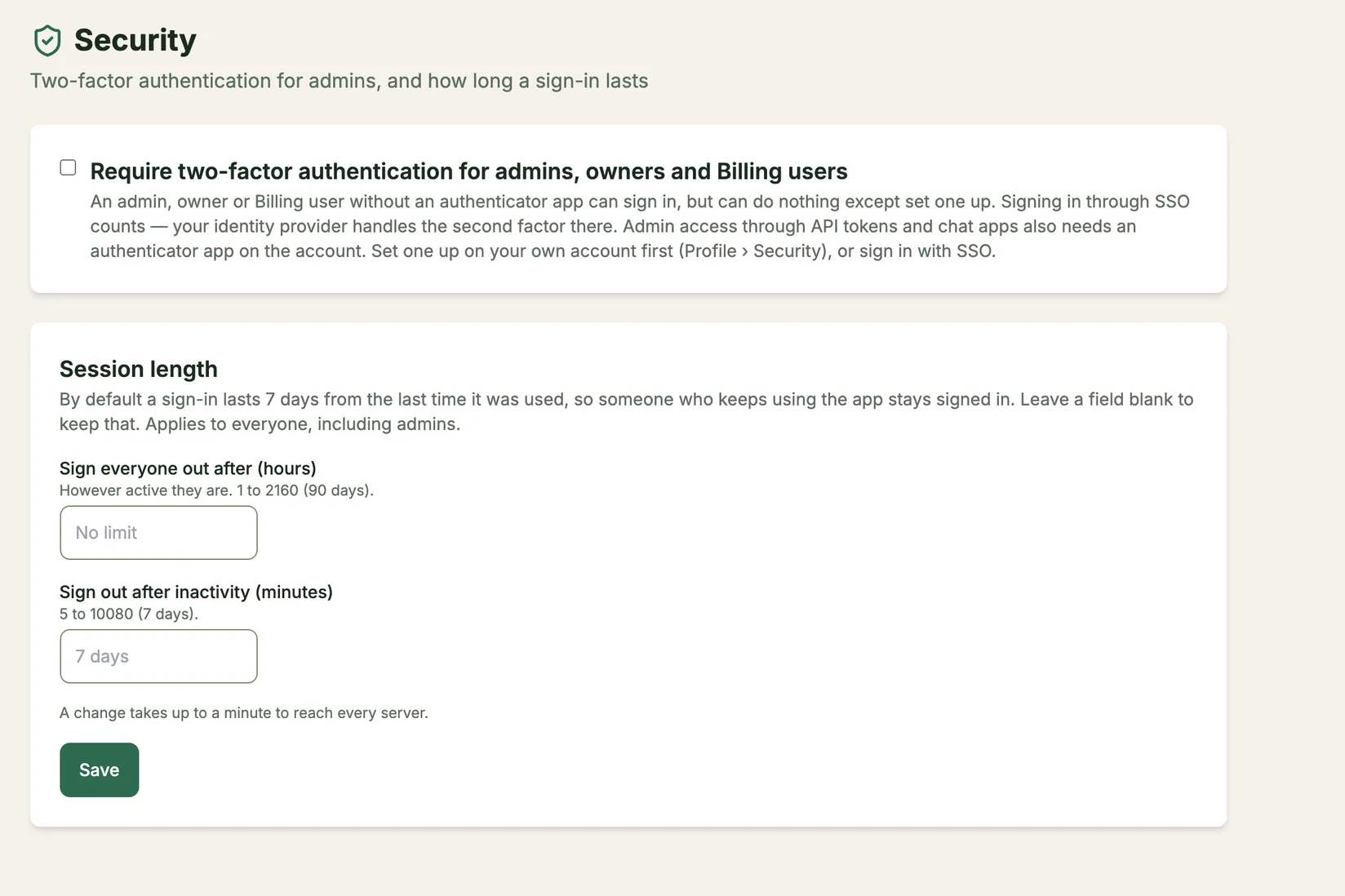
Require two-factor authentication for admins, owners and Billing users
Set up your own authenticator app
Before you can turn this on, your own account must have an authenticator app (Settings › Profile › Security), or you must be signed in with SSO.
Turn it on
Tick Require two-factor authentication for admins, owners and Billing users on Settings › Security. It saves as soon as you tick it.
What it does:
- An admin, owner or Billing user without an authenticator app can still sign in, but can do nothing except set one up. TimeLeaf takes them to the setup page.
- Signing in with SSO counts, because your identity provider handles the second factor.
- Admin access through API tokens, AI assistants and chat apps also needs an authenticator app on the account. Without one, those act with ordinary employee access.
- An owner who loses their phone and backup codes can still get in with emergency sign-in: a code sent to their email plus their password.
Session length
Under Session length, set either or both limits and click Save. Leave a field blank to keep the default. They apply to everyone, including admins.
| Setting | What it does |
|---|---|
| Sign everyone out after (hours) | Ends every sign-in this many hours after it started, however active the person is. 1 to 2160 hours (90 days). |
| Sign out after inactivity (minutes) | Ends a sign-in after this many minutes without use. 5 to 10080 minutes (7 days). A screen left open, which only refreshes itself in the background, does not count as use. |
A change takes up to a minute to reach every server. The inactivity limit counts from when you set it, so nobody is signed out for time they were away before. The hours limit counts from when each person signed in, so lowering it can sign people out straight away.
Vulnerability disclosure
If you discover a security vulnerability, please email [email protected]. We aim to respond within 24 hours and resolve critical issues within 72 hours.
We do not pursue legal action against researchers who follow responsible disclosure practices.