
Client Invoicing turns approved hours and site visits into invoices for your clients, and can let them pay online. It is built for teams that bill someone other than the employer for work done: home-care agencies billing for visit hours, trades contractors billing homeowners for a job plus materials, or any company that tracks time at a client's site.
To send a client an offer before the work starts, see Quotes. Quotes are part of this add-on. A quote can bill a deposit, stage payments and a final invoice for you.
What you need
- The Client Invoicing add-on. It is available on the Professional plan and above, for $49 a month.
- Shift scheduling with job sites, because a job site is what ties hours to a client (see Shift Scheduling).
- An admin to buy the add-on and connect Stripe. Admins, owners and people with the Billing role can also set up clients, the price list and invoices, and issue them. Managers can prepare drafts from Client Invoices in their user menu. See Roles & Permissions.
Set it up
Add the add-on
Go to Settings › Billing, find Client Invoicing under Add-ons & Options and click Add. A Clients group appears in the admin menu with Clients, Quotes, Client Invoices and Price list. Admins and owners also get Labor costs, used for job profit on quotes.
Add your clients and their rates
Go to Clients › Clients and click New client (or New client and site for a one-off customer). Fill in Bill to, Rates and Billing rules, as described below.
Link job sites to clients
Each job site that you bill for must belong to a client. Open the job site under Settings › Locations and choose its Client. Once linked, the client form shows the site so you can give it its own rate.
Let employees check in at sites
Approved hours are matched to a client through site check-ins, or through the shift's planned stops when nobody checked in. Make sure shifts carry their job-site stops.
Connect Stripe to get paid online (optional)
On Settings › Billing, use the Get paid card to connect a Stripe account (see Getting paid online).
Create your first invoice
Go to Clients › Client Invoices, click New invoice, pick the client and period, review the draft, then Issue invoice and Send it.
Setting up clients
A client is the party you bill — a patient, a family, an agency, a homeowner, a property manager. Manage them under Clients › Clients.
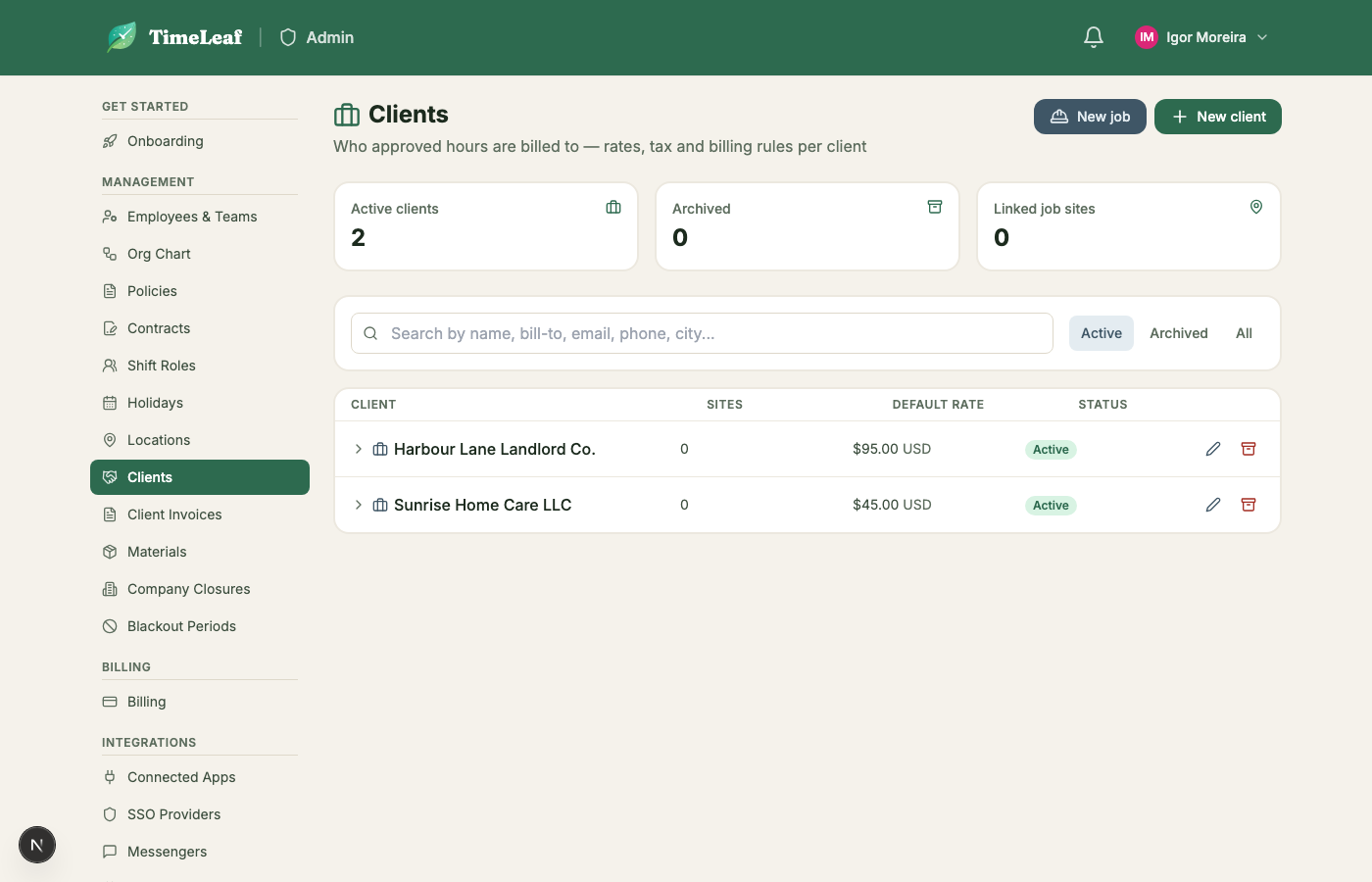
Creating a client
- Click New client.
- Under Bill to, enter the client's name, bill-to name (defaults to the client name — useful when the payer is a family member or an insurer rather than the person receiving care), bill-to address, email, phone, currency, payment terms (in days), tax rate and tax label (leave the rate blank for tax-exempt clients), and any internal notes.
- Under Rates, set a default hourly rate. You can also set a rate per shift role (for example, a registered nurse bills at a different rate than a home health aide) and, separately, a rate per site.
- Under Billing rules, configure rounding, minimum visit length, and whether uncovered time is billed (see below).
- Save.
Rate resolution order
When TimeLeaf prices an hour on a draft, it checks rates in this order and uses the first one it finds:
- A site + role rate (this client's rate for this specific site, for this specific role).
- A site-wide rate (this client's rate for this site, regardless of role).
- A role rate on the client (this client's rate for this role, at any site).
- The client's default hourly rate.
If none of those is set, the line is left unpriced and the draft flags it — issuing is blocked until every line has a price.
Per-site rate overrides
A client can own more than one site — a landlord with several properties, an agency with many patients' homes, a property manager with multiple buildings. Each site can carry its own rate that overrides the client's role/default rates for work done there, set from the Rates section of the client form (or from the site's own form under Settings › Locations, which also lets you link a job site to a client in the first place).
"Same address as the client"
On a job site's form, Same address as the client copies the client's country, state, city, and address onto the site so you don't enter it twice — common for home care, where the patient's home is both the site and the bill-to address. Turning it off leaves the copied values in place as a starting point; the timezone, map pin, and geofence stay the site's own regardless.
"New client and site" for one-off customers
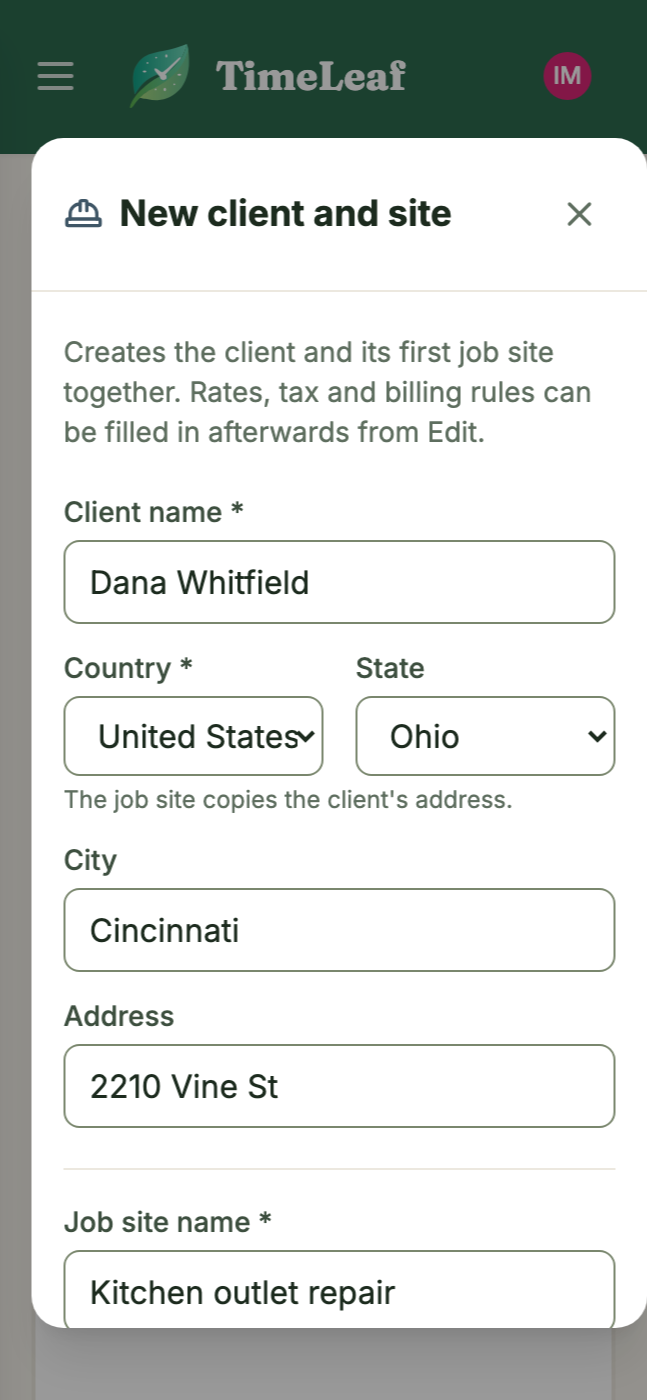
For trades work — a single job for a customer you may never bill again — the New client and site action creates the client and its job site in one step (bill-to defaulting to the name/address/phone/email you enter, address copied to the site automatically). Rates, tax, and billing rules can be filled in afterward from the client's own form.
Billing rules on the client
- Rounding increment: none, 6, 15, or 30 minutes.
- Rounding mode: round up (always favors you, the biller) or round to nearest.
- Minimum visit minutes: a floor applied per visit before rounding.
- Bill uncovered time: off by default (see below).
- Tax applies to: all lines, or materials only — set this to materials only if your jurisdiction taxes parts but not labor (common in US trades).
- Call-out fee: an optional flat fee added once per job (or once per visit day), separate from the minimum-visit floor.
- Material markup: an optional percentage applied automatically when a material line is priced from its cost.
Archiving a client (there's no hard delete) keeps its invoice history intact but stops it from being drafted against — use this instead of deleting a client you're no longer billing.
How hours become billable
TimeLeaf never invents an hour. Only approved time entries — the same ones that feed payroll — are ever eligible to appear on an invoice, and an hour is billed once, on one invoice, ever.
Here's how an approved entry gets attributed to a client and a site:
- GPS check-ins are the primary evidence. When an employee's shift has stops with check-in/check-out visits, TimeLeaf overlaps the visit's clocked time with the approved entry's clocked time. The overlap is the billable time at that site — this never bills more time than the employee was actually paid for, since approved hours always win over raw visit time.
- No visits that day → the shift plan is the fallback. A one-stop shift bills the whole entry to that stop's site; a multi-stop shift splits the entry by planned arrival/departure times, or evenly if no plan exists. Both fallbacks are flagged on the draft for review.
- No shift and no visit at all → unattributed. The hours show up under "Not on this invoice" so a manager can assign them to a site by hand, or leave them off.
- The role on the shift assignment decides the rate, not the employee's own profile — so someone covering a different role's shift bills at that role's rate.
What you'll see in "Not on this invoice"
The draft editor separates every approved hour that isn't billed into buckets, so nothing is silently dropped:
- Unattributed — approved hours with no visit and no shift for that day. You can assign these to one of the client's sites directly from the bucket.
- Uncovered time — clocked minutes a visit doesn't cover (drive time between stops, an unchecked tail at the end of a shift). Off by default per client; when a client has "bill uncovered time" turned on, uncovered minutes on a day billed entirely to that client can be included.
- Unpaid presence — a visit check-in outside any approved clocked period. Shown for visibility; never billed automatically.
- Sites without a client — visits at a job site that hasn't been linked to a client yet. Link the site from here to make its hours billable.
- Previously billed — hours already claimed by another invoice, shown with that invoice's number, so you can see why they aren't available here.
- Reserved for a quote — hours at a job site whose quote has been accepted. The quote covers or bills them, so no other invoice can take them.
An hour flagged open visit (no check-out recorded), overlapping visits, or a geofence warning (checked in well outside the site's radius) still gets billed — these are advisory flags for you to review, not blocks.
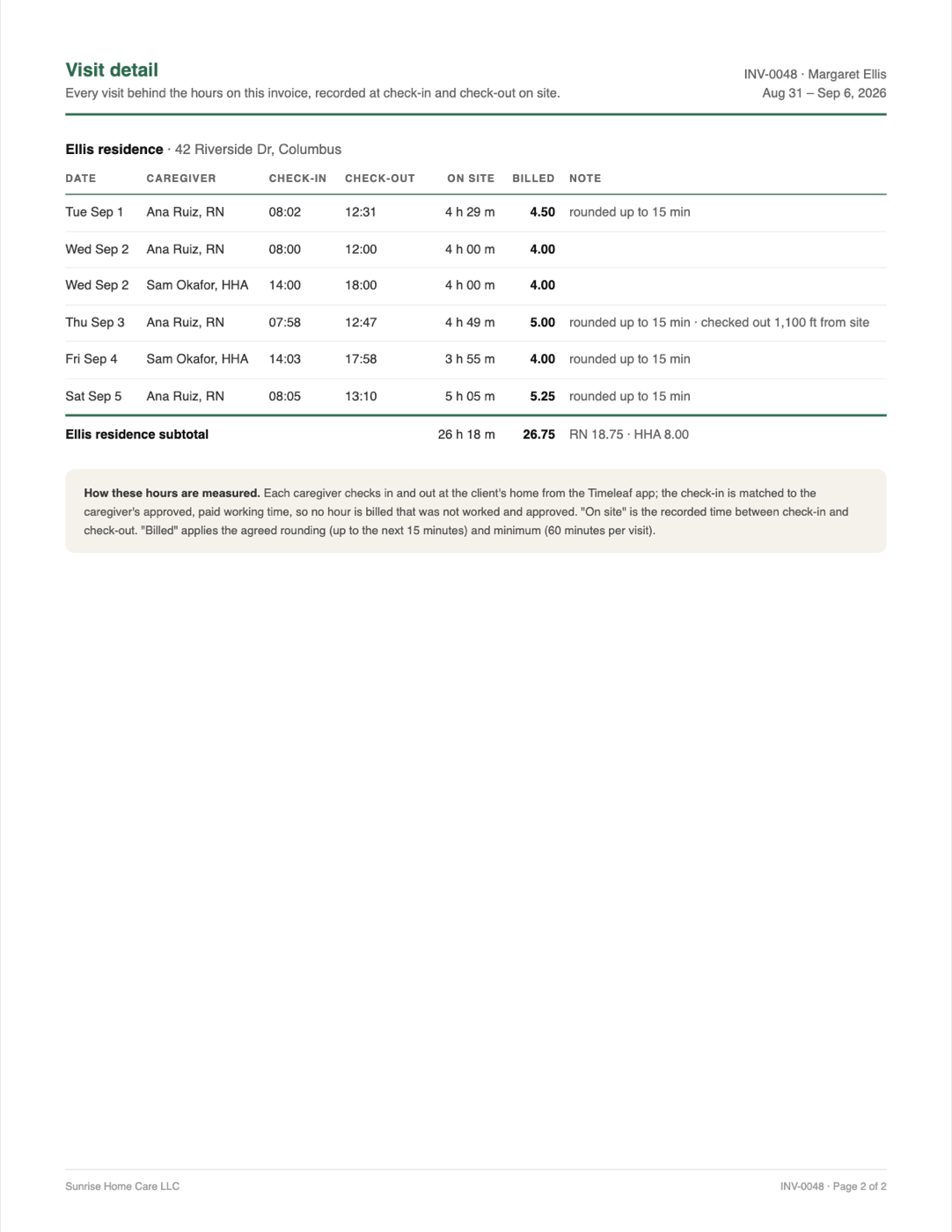
Every billed hour stays traceable back to the visits that made it up. A visit detail page (included on the PDF and linked from the invoice) lists each date, caregiver or technician, check-in/check-out pair, and how the raw clocked time became the billed hours:
Materials
Materials and other charges (parts, expenses, a flat "other" fee) can be added to a draft by hand from the invoice editor. The materials and services you charge for again and again live in the Price list (Clients › Price list), which quotes use too. If your team captures materials from the field (a description, quantity, price, and receipt photo attached to a visit), those land as pending lines on the client's next open draft automatically, where you accept or edit them before issuing.
Draft, review, issue
Creating a draft
- Go to Clients › Client Invoices and click New invoice.
- Pick a client and a billing period. TimeLeaf pre-fills the period as the day after the client's last invoiced period through the last fully approved week, and shows a live preview: approved hours found, across how many visits, and how many hours are still pending approval.
- Click Create draft. TimeLeaf runs the attribution engine and lands you on the invoice editor.
Reviewing and editing the draft
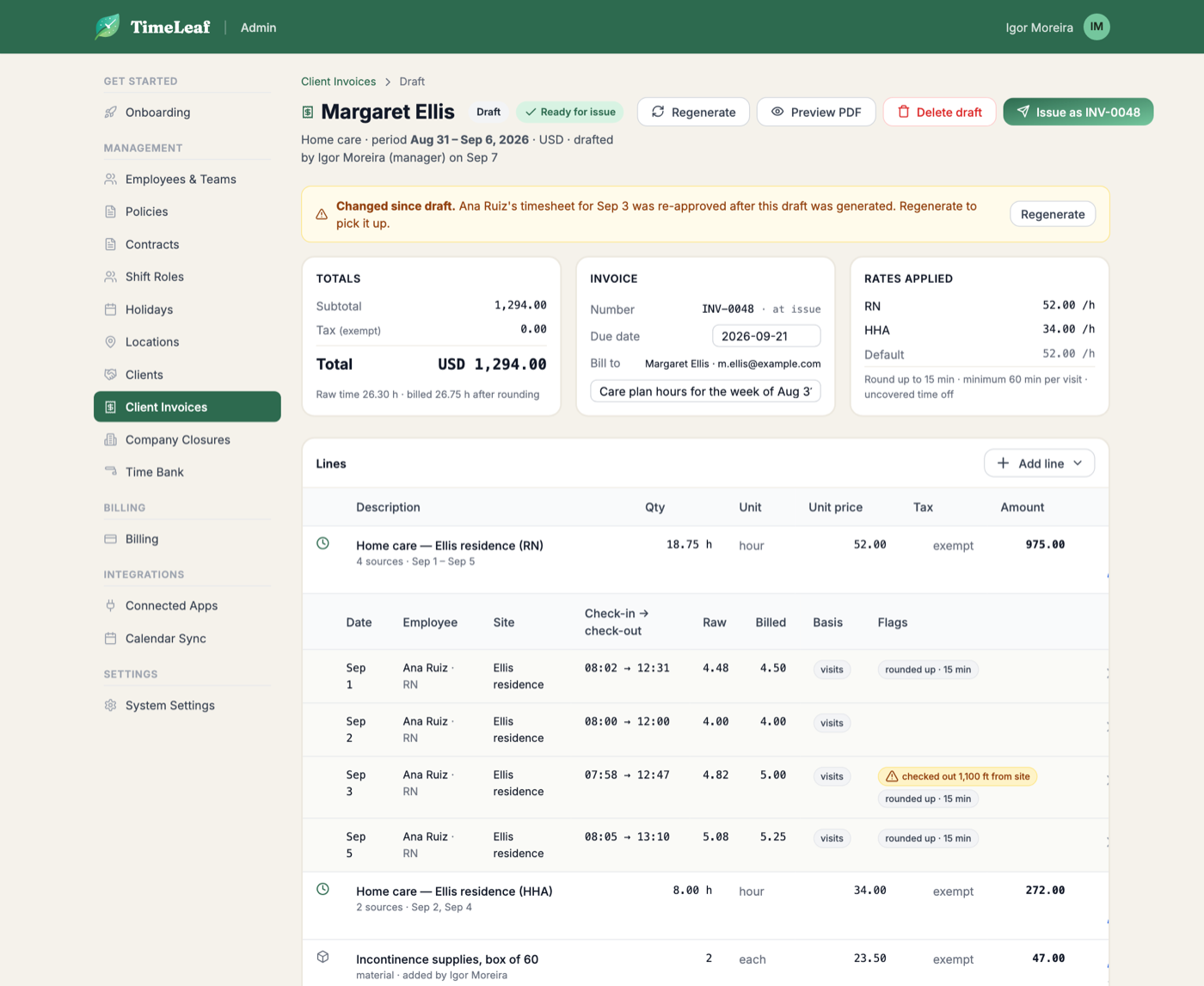
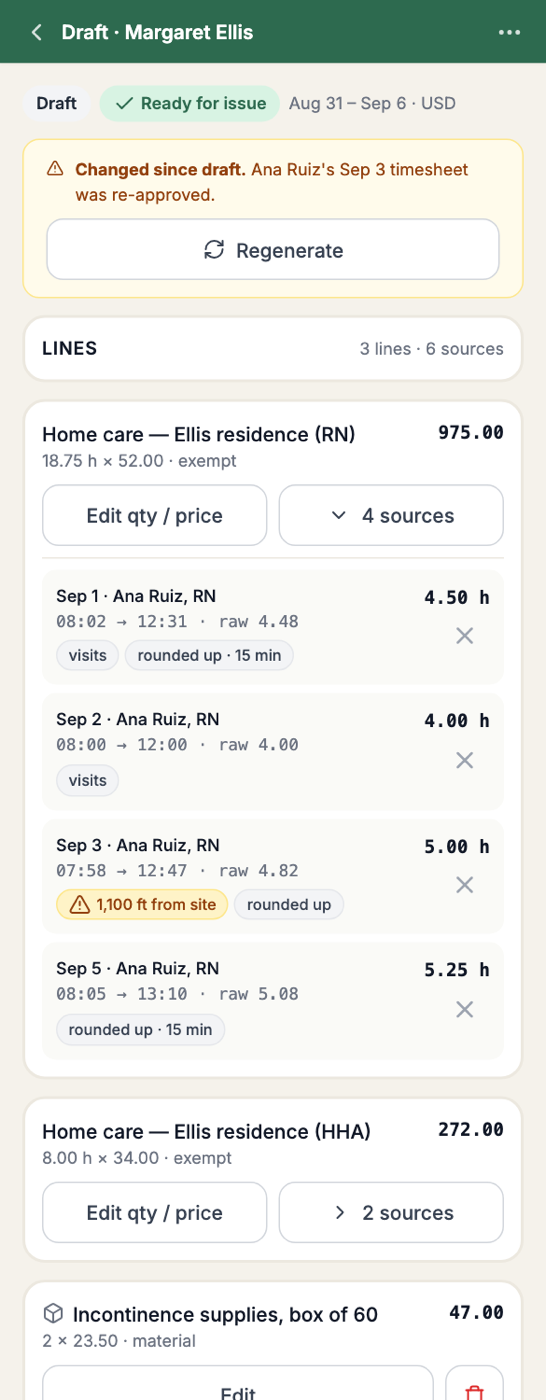
The draft's lines table shows one hours line per site/role combination, with quantity, unit price, tax, and amount — all editable inline. Expand an hours line to see its underlying sources: date, employee, site, role, raw hours, billed hours, the basis (visits, plan fallback, etc.), and any flags, each with a tooltip explaining the rule that raised it. You can remove a source from the line, which returns those hours to "not on this invoice."
Use Add line to add a manual line of kind material, other, or adjustment.
The same editor handles a single job instead of a date range for trades work — labor at each worker's rate, a service-call fee, and materials with tax applied only where it should be:
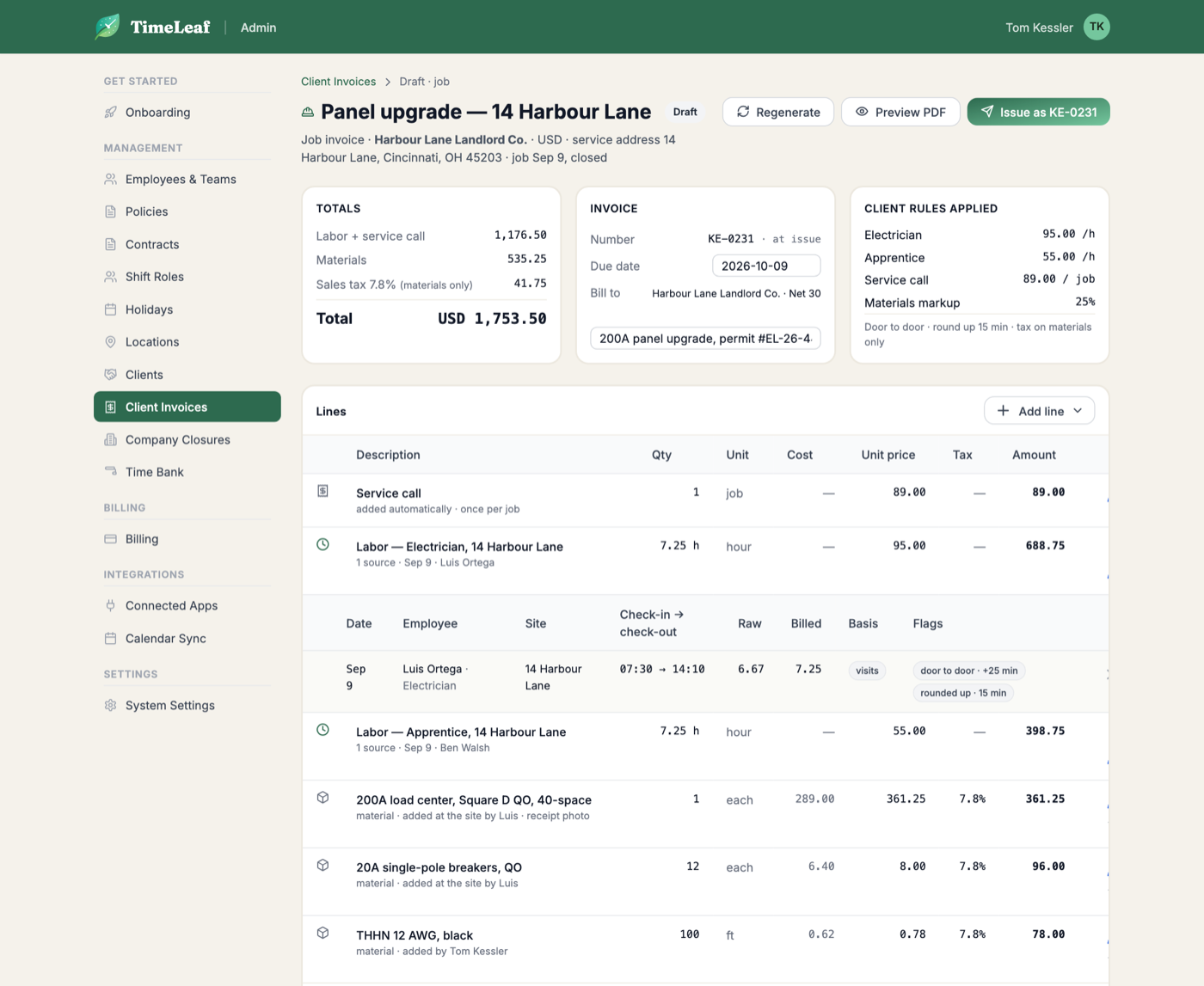
Creating a job and reviewing its draft works just as well from a phone, which matters when a crew is closing out a job on-site:
Adjustment lines and billing exceptions
Once an invoice is issued it's a permanent snapshot — corrections never modify it. If the underlying data changes afterward (a manager edits an approved entry or deletes a visit that already fed an invoice), TimeLeaf detects the drift and records it as an open billing exception against that client. The next draft for the client surfaces these as suggested adjustment lines — a positive or negative line referencing the original invoice number — so the correction shows up on the next bill instead of retroactively changing a bill the client already received.
If a client has unresolved billing exceptions that this draft doesn't address with an adjustment line, the issue confirmation warns you and lets you proceed anyway — it doesn't block issuing, since some drifts are intentionally left for a later invoice.
Issuing
Click Issue invoice to open the confirmation dialog, which shows the invoice number about to be assigned, the total, and the bill-to email. Confirming:
- Assigns the next sequential invoice number for your tenant.
- Freezes every total.
- Renders and stores the invoice PDF.
- Records an audit log entry.
Issuing is irreversible — an issued invoice cannot be edited. If every line doesn't have a price (a client or role with no rate configured), issuing is blocked until you fix the missing price.
After issuing, an invoice can be marked paid with Mark paid (with a date and optional payment reference) or voided with Void (a reason is required; voiding frees the underlying hours to be billed again on a future invoice).
Invoices made from a quote
When a client accepts a quote, its payments are ordinary invoices, made for you:
- A deposit due on acceptance is made and issued at once. A payment due on a date is made as a draft on that day, and a payment at a stage when you click Invoice this payment.
- The final invoice bills the balance. It prints the job (the quoted lines, or the real approved hours for an estimate) and takes off each earlier payment invoice as a line such as "Less Deposit (INV-0002)".
- An invoice made from a quote says From quote Q-0001 at the top, and it is in the quote's language, on the page, the PDF and the emails. Lines that TimeLeaf writes for a quote, such as the deposit and credit lines, cannot be edited.
- Hours at the quote's job site are reserved for the quote, so each hour is still billed once.
- A payment invoice cannot be voided once the final invoice is issued. Void the final invoice first.
Sending and the public invoice page
An issued invoice can be sent with Send (and later Resend) by email — TimeLeaf attaches the PDF and records the send time and recipient. Sending, unlike issuing, is blocked if the client has no bill-to email on file.
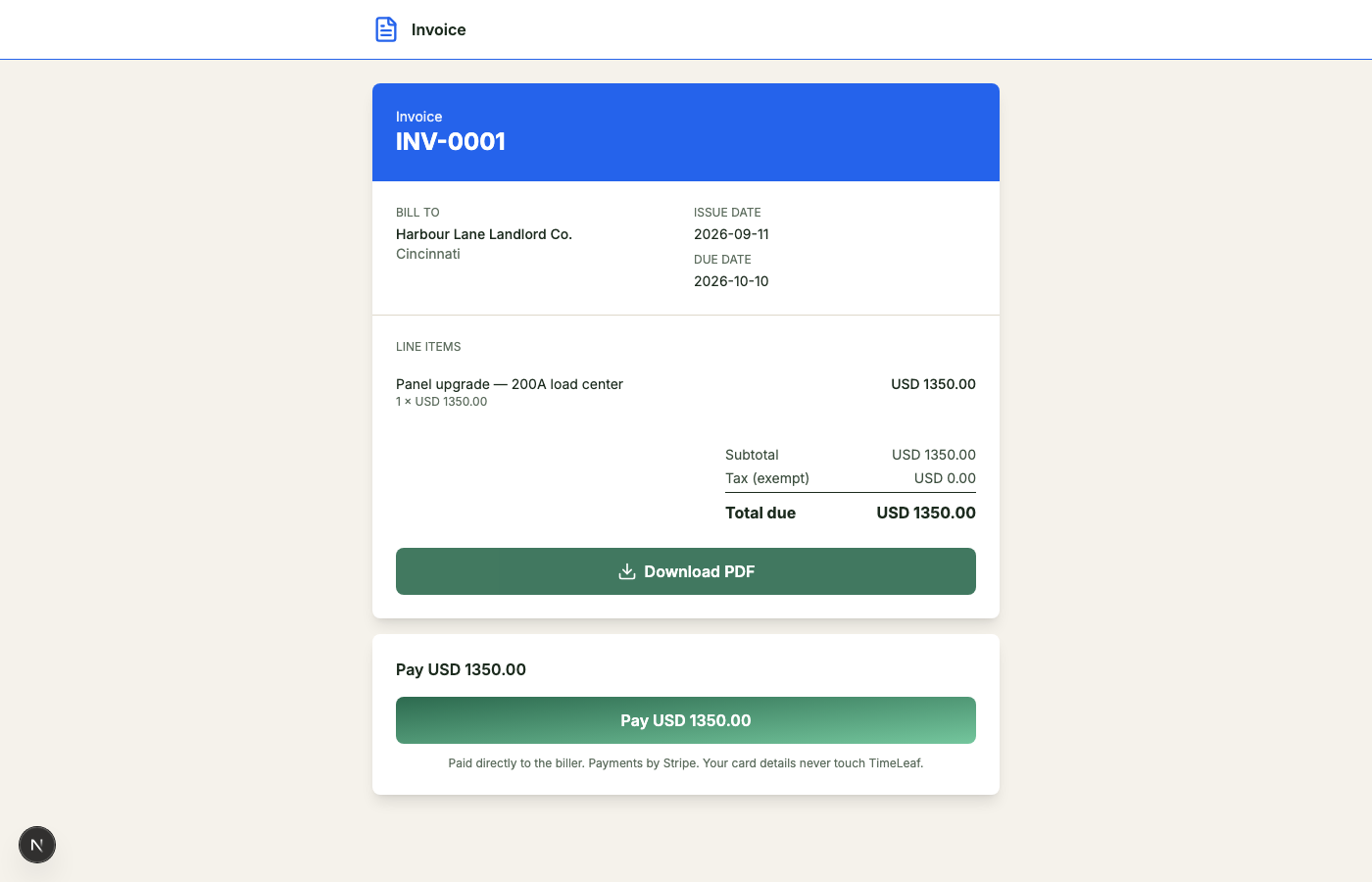
If SMS is enabled for a client, invoices can also go out as a short text with a link: "Invoice {number} · {currency} {total} due {date} · {link}". The link opens a public, no-login invoice page at https://<your-workspace>.timeleaf.io/i/<token> — the same content as the PDF (company header, invoice number and dates, bill-to, lines, totals, payment instructions), with a Download PDF button and, if you've enabled online payment, a Pay now button. Each invoice has its own link. Click Revoke public link on the invoice to stop a link working.
Getting paid online
Client Invoicing includes Stripe Connect payment collection at no extra cost beyond the add-on price — there's no separate payments SKU, and TimeLeaf takes no additional platform fee on top of what's already priced in.
Connecting Stripe
- Go to Settings › Billing and find the Get paid card.
- Click Get paid to start Stripe's hosted onboarding (Stripe Express). This asks for your business and bank details directly through Stripe — TimeLeaf never sees or stores them.
- Once onboarding is complete, the card shows Charges enabled and a Pay now button appears on your invoices automatically.
Stripe Express onboarding isn't available in every country; if yours isn't supported yet, the Get paid button is disabled and says so.

How a client pays
From the public invoice page, the client clicks Pay now, which redirects to a Stripe Checkout page hosted by Stripe — card, Apple Pay, and Google Pay are all available there automatically, with no card details ever touching TimeLeaf's servers. On successful payment, the invoice is marked paid and the payment reference is recorded automatically.
Payments are direct charges to your own connected Stripe account — you are the merchant of record, funds go straight to your bank via Stripe's normal payout schedule, and your business name (not TimeLeaf's) appears on the client's card statement.
Refunds
If you void an invoice that was paid online, TimeLeaf automatically issues a Stripe refund for that payment. If the refund itself fails (a Stripe-side issue), the void still goes through and the failure is logged and audited so it can be reconciled manually — voiding is never blocked waiting on Stripe.
Recurring drafts
For clients you bill on a fixed schedule, a client can be set to auto-generate a draft weekly or fortnightly. TimeLeaf creates the draft in draft status for review — it never auto-issues — once each period has fully elapsed, exactly as if you'd clicked New invoice yourself.
Accounting sync
If you've connected QuickBooks or Xero (see the integration pages under Integrations), an issued invoice gets Push to QuickBooks / Push to Xero buttons on its detail page (admin only). Pushing creates the matching customer and invoice record in your accounting system and stores the remote record's id on the TimeLeaf invoice, so a repeat push updates the same record rather than duplicating it. This is a manual, per-invoice action — invoices aren't pushed automatically.
Troubleshooting
Why can't I collect payment on an invoice? Either Stripe Connect hasn't finished onboarding yet (check the Get paid card under Settings › Billing — it will say "Onboarding in progress" and give you a Continue setup link), or your country isn't yet supported by Stripe Express. Until then, use Mark paid with a manual reference (bank transfer, cheque, e-transfer) — it's the primary path for payers like insurers and agencies who don't pay by card anyway.
Why is an hour missing from this invoice? Check the Not on this invoice buckets on the draft — it's almost always one of: unattributed (no visit or shift found for that entry), uncovered time (clocked minutes between visits, off unless the client has that setting on), unpaid presence (a check-in outside any approved time), or a site with no client linked yet.
Why won't Issue invoice let me finish? A line has no price — check that the client, role, or site has a rate configured. Issuing is blocked until every line prices out; sending is separately blocked if the client has no bill-to email.
Why does the client's invoice show a different timezone than expected? Nothing to fix — a patient's home can be in a different timezone than the agency paying for it. The site's own timezone governs the visit day; the client's bill-to address is independent of it.